> For the complete documentation index, see [llms.txt](https://support.dlink.com.sg/llms.txt). Markdown versions of documentation pages are available by appending `.md` to page URLs; this page is available as [Markdown](https://support.dlink.com.sg/consumer/wi-fi-router/r15/faqs/r15-r15-initial-setup-using-web-configuration.md).
# R15- R15 Initial Setup using Web Configuration
**R15** Hardware Setup
{% file src="/files/Q3fMk3P6ic5PBIUyMBUV" %}
{% stepper %}
{% step %}
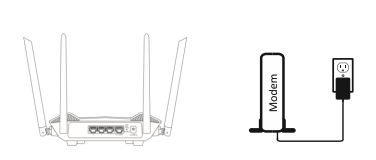
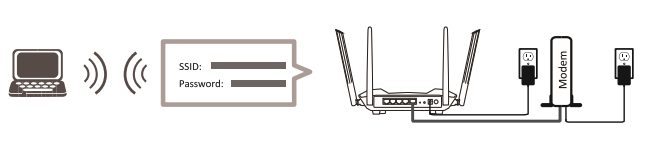
Position your R15 near your Internet-connected modem. Place it in an open area for better\
wireless coverage.
{% endstep %}
{% step %}
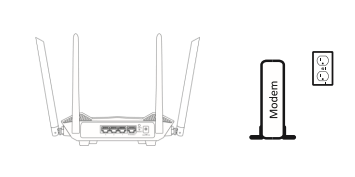
Turn off and unplug the power to your cable or DSL broadband modem. This is required. In\
some cases, you may need to turn it off for up to five minutes.
{% endstep %}
{% step %}
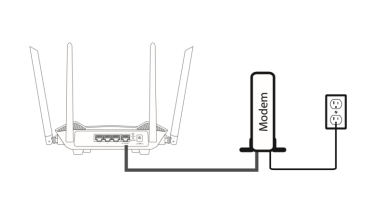
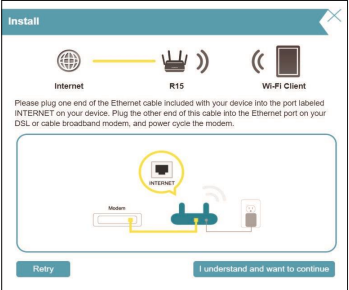
Use the Ethernet cable to connect your modem to the port labelled INTERNET on the\
router.
{% endstep %}
{% step %}
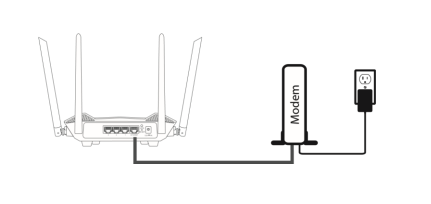
Plug in the power and turn your modem back on and wait approximately one minute before\
proceeding with the procedure.
{% endstep %}
{% step %}
Connect the supplied power adapter to the router and a power outlet, and wait approximately\
one minute until the LED indicator on the front of the device changes from orange to solid white.
{% endstep %}
{% step %}
If you are configuring the router wirelessly from a PC, connect to the Wi-Fi network name\
printed on the label attached to the bottom of your router. Note: The Wi-Fi name (SSID), Wi-Fi\
password, and device password are printed on the device label on the bottom of the device.
If you are configuring the router from a PC with a wired Ethernet connection, plug one end of an Ethernet cable into the port labelled 1 on the back of the router, and the other end into the Ethernet port on your computer.
{% endstep %}
{% step %}
If you are connecting to a broadband service that uses a dynamic connection (not PPPoE), you may be online already. Try opening a web browser and connecting to a website. If the website does not load, proceed to **Setup Wizard**
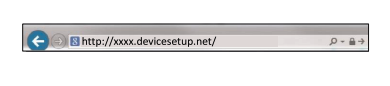
If this is your first time installing the router, open your web browser and enter\
**** into the browser (XXXX represents the last 4 digits of the MAC address).
{% endstep %}
{% step %}
Enter the Admin Password and click Log In to start the configuration process. The web address and device password are printed on the device label on the bottom of the device
{% endstep %}
{% step %}
Agree to the **Terms of Use and Privacy Policy** before proceeding.
{% endstep %}
{% step %}
### Follow the on-screen instructions to configure your new D-Link router and connect to the Internet
Click **Next** to continue
{% endstep %}
{% step %}
### Connect the router and the modem with an Ethernet cable
{% endstep %}
{% step %}
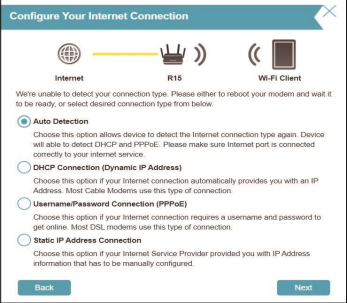
If the router does not detect a valid Internet connection, a list of connection types will be displayed. Select your Internet connection type (this information can be obtained from your Internet Service Provider).
Click **Next** to continue.
{% endstep %}
{% step %}
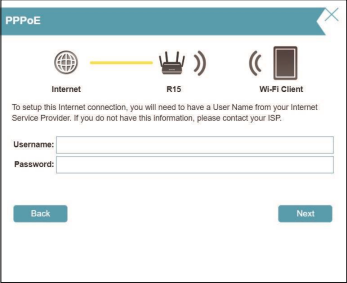
If the router detects or you select **PPPoE**, enter your PPPoE username and password. If you do not have this information, please contact your ISP.
Click **Next** to continue.
**Note**: *Be sure to remove all other existing PPPoE software from your computer. The software is no longer needed and will not work through a router.*
{% endstep %}
{% step %}
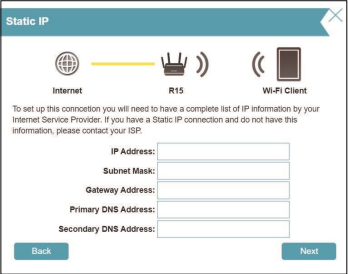
If the router detects or you select **Static**, enter the IP and DNS settings supplied by your ISP. If you do not have this information, please contact your ISP.
Click **Next** to continue.
{% endstep %}
{% step %}
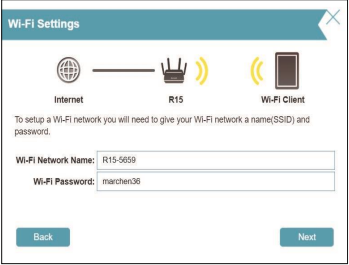
Type in a **Wi-Fi Network Name** and **Wi-Fi Password** to set up your Wi-Fi network. Your wireless clients will need this network password to be able to connect to your wireless network.
Click **Next** to continue.
**Note**: The router's Smart Connect feature presents a single wireless network. When connecting clients to an extended network, they will be automatically added to the best band, either 2.4 GHz or 5 GHz. To disable the Smart Connect feature and individually\
configure 2.4 GHz and 5 GHz networks. See Wireless Configuration Settings
{% endstep %}
{% step %}
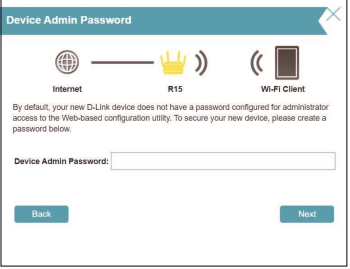
In order to better protect the router's configuration page, please enter a password. You will be prompted for this password every time you log in to the router’s web configuration utility. Password must be 8-15 characters and contains both numbers and letters
**Note**: It is strongly recommended that you change the default device password for accessing the router's configuration page.
Click **Next** to continue.
{% endstep %}
{% step %}
### Select your time zone from the drop-down menu.
Click **Next** to continue.
{% endstep %}
{% step %}
Keeping your router's firmware up to date provides you with the latest security upgrades and new features over the air. Choose whether to keep your device up-to-date automatically or to manage the device updates by yourself.
Click **Next** to continue.
{% endstep %}
{% step %}
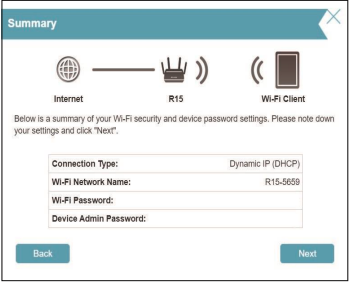
You will be presented with a summary of your settings. Click **Next** to apply the settings or **Back** to make changes
{% endstep %}
{% step %}
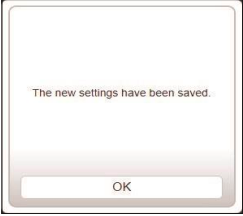
### Please wait while the device settings are saved. Do not turn off or unplug your router during this time.
Your new settings have been saved and your router is now configured. Click **OK** to close the Setup Wizard.
{% endstep %}
{% step %}
Congratulations, your device has been successfully configured! You can log in to the web configuration interface with the Admin Password.
{% endstep %}
{% step %}
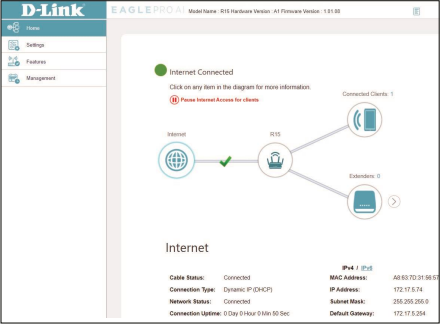
### The router’s home page will open displaying its current connection status.
{% endstep %}
{% endstepper %}