> For the complete documentation index, see [llms.txt](https://support.dlink.com.sg/llms.txt). Markdown versions of documentation pages are available by appending `.md` to page URLs; this page is available as [Markdown](https://support.dlink.com.sg/consumer/wi-fi-router/r15/faqs/r15-how-to-setup-port-forwarding.md).
# R15-How to setup port forwarding
{% stepper %}
{% step %}
### Connect your device to the Wi-Fi of the R15 router.
{% endstep %}
{% step %}
### Open a browser and type or then press Enter
*\*XXXX Last 4 digit of the router’s mac address*
{% endstep %}
{% step %}
### Enter your administrator password.
*If you have not changed the default password, check on the configuration card. Click Login.*
{% endstep %}
{% step %}
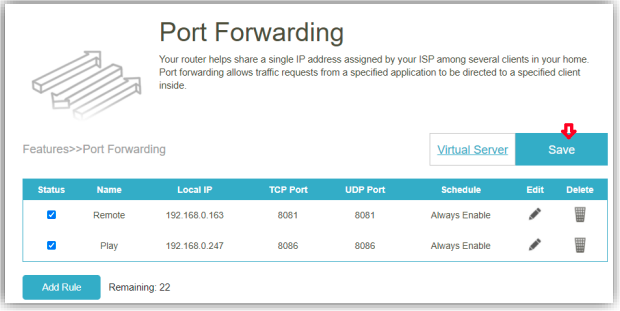
### Go to Features > Port Forwarding
* Click on Add Rule to Create a New Rule
{% endstep %}
{% step %}
### Create new Rule
* **Name:** Enter a name for the rule
* **Local IP:** Enter the IP address of the computer on your local network to which you want\
to direct the incoming service. Alternatively, select the device from the drop-down menu.
* **TCP Port**: Enter the TCP ports that you want to open. You can enter a single port or a\
range of ports. Separate ports with a comma (for example: 24,1009,3000-4000).
* **UDP Port**: Enter the UDP ports that you want to open. You can enter a single port or a\
range of ports. Separate ports with a comma (for example: 24,1009,3000-4000).
* **Schedule**: Use the drop-down menu to select the time schedule for the rule. The\
schedule may be set to Always Enable, or you can create your own schedules in the Schedule\
section.
{% endstep %}
{% step %}
### Click Apply
{% endstep %}
{% step %}
### Scroll up and Click Save
{% endstep %}
{% endstepper %}
On the Schedule creation page, enter the name of your schedule in the Name field. Each box represents half an hour, with the clock time (0\~23) at the top of each column. To add a time period to the schedule, simply click on the start time and drag to the end time. You can add multiple days and multiple periods per day to the schedule. To remove a time period from the schedule, click on the cross icon. Click Apply to save and close the page. Then click Save when you are done creating schedules.
**Schedule**
* Click on Add a Schedule
* Set your desired name
* High light date and time
* Click on Apply
* Hit Save to make changes