R15-How to change Wireless SSID and Password via Web GUI

1

Connect your device to the Wi-Fi of the R15 router.

2

Open a browser and type http://R15-XXXX.local./ or http://192.168.0.1 then press Enter

*XXXX Last 4 digit of the router’s mac address

3

Enter your administrator password. If you have not changed the default password, check on the configuration card. Click Login.

Mesh - Enable or disable Wi-Fi mesh if you plan to build a mesh network in your environment. The mesh network is able to find the shortest and fasted path to your gateway/router in a mesh network topology. Hence, it enhances efficiency and reliability

Smart Connect - Enable or disable the Smart Connect Feature. When enabled, only a few configuration options are available to simplify Configuration.

Wireless SSID - Create a name for your wireless network using up to 32 characters.

Password - Create a password for wireless security. Wireless clients will need to enter this password to successfully connect to the network.

4

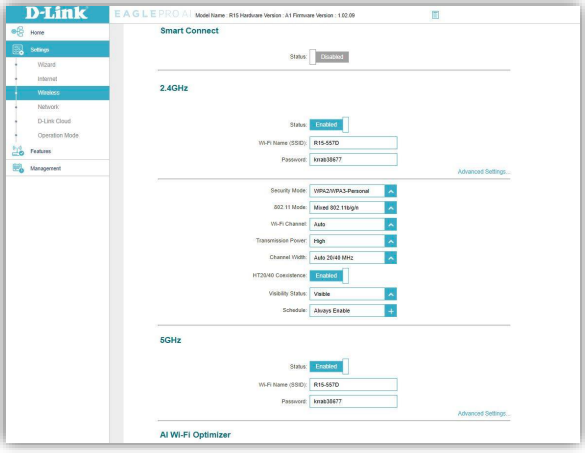
Click Settings > Wireless

a. Mesh Disabled

b. Smart Connect Enabled

c. Wireless Enabled

  • Change SSID and PW

  • Save

Click Settings > Wireless

a. Mesh Disabled

b. Smart Connect Disabled

c. 2.4Ghz and 5Ghz Enabled

  • Change SSID and PW

  • Save

Advance Settings: 2.4Ghz

Go to Settings > Wireless

  • Mesh Disabled

  • Smart Connect Disabled

  • 2.4Ghz Enabled

  • Advance Setting

Advance Settings: 5Ghz

Go to Settings > Wireless

  • Mesh Disabled

  • Smart Connect Disabled

  • 5Ghz Enabled

  • Advance Settings

Last updated