> For the complete documentation index, see [llms.txt](https://support.dlink.com.sg/llms.txt). Markdown versions of documentation pages are available by appending `.md` to page URLs; this page is available as [Markdown](https://support.dlink.com.sg/consumer/wi-fi-router/m15/faqs/how-to-setup-m15-master-using-eagle-pro-ai-app.md).
# How to setup M15 Master using Eagle Pro AI App
{% stepper %}
{% step %}
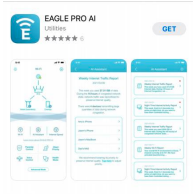
Search and install the free EAGLE PRO AI available on the App Store or on Google\
Play.
{% endstep %}
{% step %}
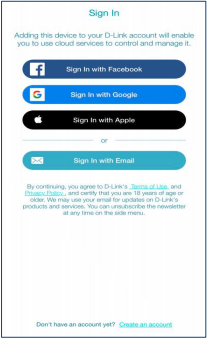
### Select your preferred sign-in Option
*Note: If this is your first time using the EAGLE PRO AI app, tap on Create an Account*\
*at the bottom of the page*
{% endstep %}
{% step %}
### Go through the End User License Agreement then tap Accept at the bottom
{% endstep %}
{% step %}
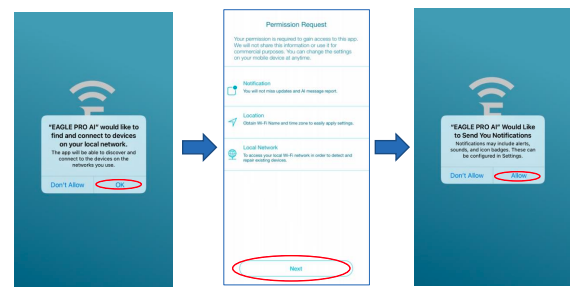
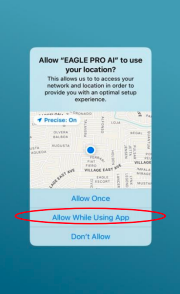
### Follow the On-screen instructions
{% endstep %}
{% step %}
### On the Welcome page of the app, click + to install a new device then follow the OnScreen instructions
{% endstep %}
{% step %}
### Select your Internet Service Provider (ISP) from the list.
Note: If your ISP is not listed, you may tap ***I Can’t Find One*** at the bottom to proceed
{% endstep %}
{% step %}
You may create and customize your wifi network according to your preference. Once\
done, tap **Next**
*Note: You may opt to keep the default wifi settings*
{% endstep %}
{% step %}
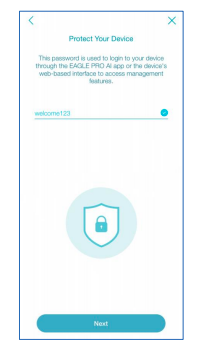
### Create a Password for your device then tap Next
{% endstep %}
{% step %}
### Create a Device Name then tap Next
{% endstep %}
{% step %}
### Tap Save at the bottom and wait until all settings are saved
{% endstep %}
{% step %}
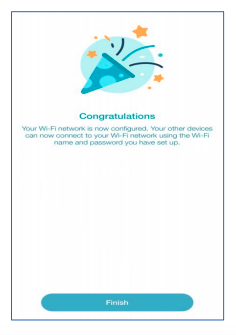
### Setup Complete
{% endstep %}
{% endstepper %}