> For the complete documentation index, see [llms.txt](https://support.dlink.com.sg/llms.txt). Markdown versions of documentation pages are available by appending `.md` to page URLs; this page is available as [Markdown](https://support.dlink.com.sg/consumer/wi-fi-router/dir-895l/faqs/how-to-setup-dir-895l-for-tm-and-maxis-my.md).
# How to Setup DIR-895L for TM and Maxis? (MY)
{% stepper %}
{% step %}
### Connect Your PC (Laptop) to the Router (Port 1) using Network cable.
{% endstep %}
{% step %}
Launch your browser (Google Chrome) and key in 192.168.0.1 in the address\
column and press Enter
{% endstep %}
{% step %}
### Enter Password: \. Click on Log In
{% endstep %}
{% step %}
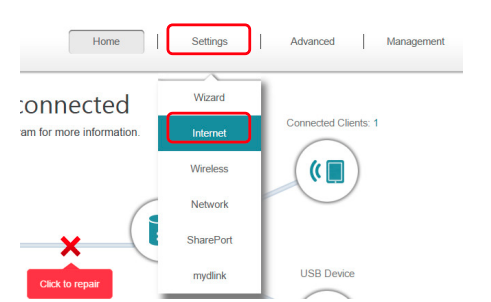
### Go to Settings > Internet.
{% endstep %}
{% step %}
### Choose the PPPoE, key in PPP Username and Password.
{% endstep %}
{% step %}
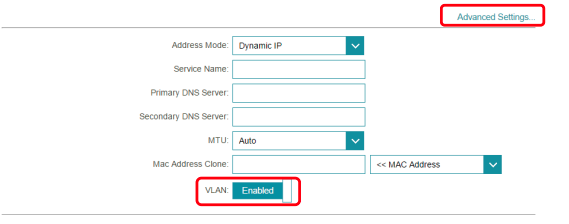
### Click Advanced Settings and Enable the VLAN.
Change the following **VLAN ID** as below:
#### **For Unifi VLAN**
**Internet: 500**\
**IPTV: 600**\
**VOIP: 400**
#### **For Maxis VLAN**
**Internet: 621**
Click **Save** after done with configuration.
{% endstep %}
{% step %}
Choose the **IPTV** from **Wan Connection**, and plug in the cable to **LAN Port 4** for\
IPTV.
{% endstep %}
{% endstepper %}
---
# Agent Instructions
This documentation is published with GitBook. GitBook is the documentation platform designed so that both humans and AI agents can read, navigate, and reason over technical content effectively. Learn more at gitbook.com.
## Querying This Documentation
If you need additional information that is not directly available in this page, you can query the documentation by asking a question.
Perform an HTTP GET request on the following URL with the `ask` and `goal` query parameters:
```
GET https://support.dlink.com.sg/consumer/wi-fi-router/dir-895l/faqs/how-to-setup-dir-895l-for-tm-and-maxis-my.md?ask=&goal=
```
`ask` is the immediate question: it should be specific, self-contained, and written in natural language.
`goal` is what the user is ultimately trying to achieve, the reason they need the answer. Sharing it helps GitBook give you a better, more relevant answer. A goal is most helpful when it describes the outcome the user wants rather than restating the question. For example, with `ask=how do I create an API token`, a goal like `automate deployments from our CI pipeline` lets GitBook tailor the answer to that use case.
The response will contain a direct answer to the question and relevant excerpts and sources from the documentation.
Use this mechanism when the answer is not explicitly present in the current page, you need clarification or additional context, or you want to retrieve related documentation sections.