> For the complete documentation index, see [llms.txt](https://support.dlink.com.sg/llms.txt). Markdown versions of documentation pages are available by appending `.md` to page URLs; this page is available as [Markdown](https://support.dlink.com.sg/consumer/wi-fi-router/dir-890l/faqs/how-do-i-upgrade-the-firmware-on-my-router.md).
# How do I upgrade the firmware on my router?
**Important Note:** D-Link Suggests only upgrading the firmware over a WIRED connection.
Performing the upgrade over a wireless connection may damage the router in the event of a connection drop during the upgrade process.
{% stepper %}
{% step %}
### Download the latest firmware for your router at
Click on **Router Tab** and Select **DIR-890L icon** to list the latest firmware available for download.
It is suggested to download the firmware somewhere it can easily be found, such as your desktop.
**Note:** *The firmware file should be a .bin file. In some cases the firmware is in a .zip format. If so, please extract the .bin file using the built in Windows extractor or using Winzip/WinRar.*
**Note:** *This downloaded firmware file cannot be opened or run on your computer. It must be loaded into the router.*
{% endstep %}
{% step %}
### Log into your router
Open your web browser and enter the IP address of the router into the address bar- The default IP is 192.168.0.1 or click here .
You should be taken to a D-Link login page. By default, the username is admin and there is no password.
Note: If you have lost your login password, you will need to reset the router to factory default settings. Click here for reset instructions
**New GUI**\
White and Blue
**Related FAQs**
***Note:** Internet is not required to access your routers configuration interface. Internet is only required to download the firmware file.*
***Note:** This example uses the DIR-880L Please ensure to select and download the correct firmware for your router.*
***Note:** Some firmware upgrades revert all settings back to factory default settings. If this happens, you may need to reconfigure your wireless/internet settings.*
{% endstep %}
{% step %}
### Click On Maintenance > Upgrade
{% endstep %}
{% step %}
### Click Select File to browse for the firmware (downloaded earlier)
{% endstep %}
{% step %}
### Click Upload
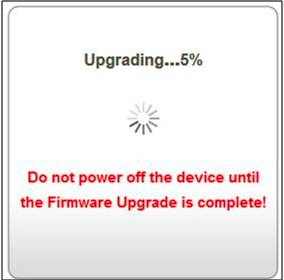
The firmware will begin to upgrade.
{% endstep %}
{% endstepper %}