> For the complete documentation index, see [llms.txt](https://support.dlink.com.sg/llms.txt). Markdown versions of documentation pages are available by appending `.md` to page URLs; this page is available as [Markdown](https://support.dlink.com.sg/consumer/wi-fi-router/dir-890l/faqs/how-do-i-open-ports-on-my-router.md).
# How do I open ports on my router?
{% stepper %}
{% step %}
### Log into your router
**New GUI- Single Port**\
White and Blue
By default. your router will block all incoming connections (into your network) and allow all Outgoing connections to the Internet. In some cases, you may need to allow some connections into your network (for Example: Using the Remote Desktop Application). To do this, you must open ports on your router.
{% endstep %}
{% step %}
### Click Feature > Port Forwarding
{% endstep %}
{% step %}
### Click Virtual Server
{% endstep %}
{% step %}
### Click Add Rule
{% endstep %}
{% step %}
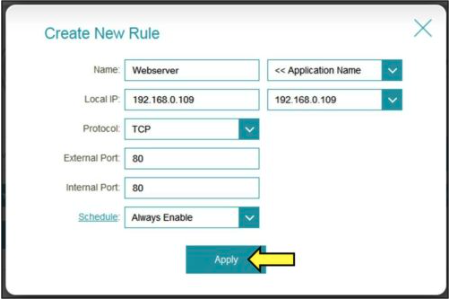
### Create your rule:
– **Name**– Enter a name for the rule (ie. Web Server 1)\
– **Local IP**: Specify the IP address of the device you are opening the port for\
– **Protocol**: Specify the traffic type (TCP or UDP) – **Note**: If you are not sure, choose **BOTH**\
– **External/Internal Port**: Enter the port number you want to open (ie. 80)
– Click **Apply**
**New Gui- Range/Multiple Ports**\
White and Blue
By default. Your router will block all incoming connections (into your network) and allow all Outgoing connections to the Internet. In some cases, you may need to allow some connections into your network (for Example: Using the Remote Desktop Application). To do this, you must open ports on your router.
{% endstep %}
{% step %}
### Click Feature > Port Forwarding
{% endstep %}
{% step %}
### Click Add Rule
{% endstep %}
{% step %}
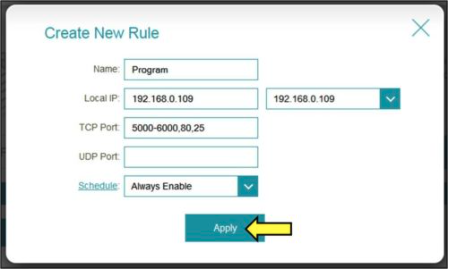
### Create your rule:
– **Name**– Enter a name for the rule (ie. Web Server 1)\
– **Local IP:** Specify the IP address of the device you are opening the port for\
– **TCP Port:** Enter the TCP port numbers you want to open\
– **UDP Por**t- Enter the UDP port numbers you want to open
**Note:** *You can enter the ports in multiple different ways- Range (50-100) Individual (80, 68, 888) Mixed (1020-5000, 689)*
– Click **Apply**
{% endstep %}
{% endstepper %}