> For the complete documentation index, see [llms.txt](https://support.dlink.com.sg/llms.txt). Markdown versions of documentation pages are available by appending `.md` to page URLs; this page is available as [Markdown](https://support.dlink.com.sg/consumer/wi-fi-router/dir-885l/faqs/how-do-i-set-up-the-quick-vpn-feature-on-my-dir-885l-router.md).
# How do I set up the Quick VPN feature on my DIR-885L router?
**How do I set up the Quick VPN feature on my DIR-885L router?**
{% stepper %}
{% step %}
### Log into your router
{% endstep %}
{% step %}
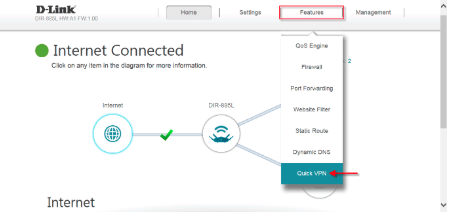
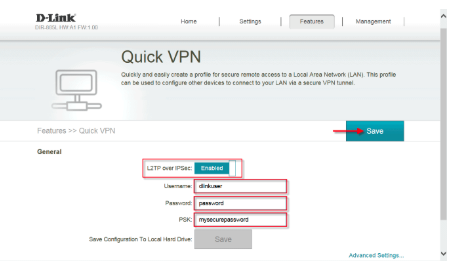
### Click Features > Quick VPN
{% endstep %}
{% step %}
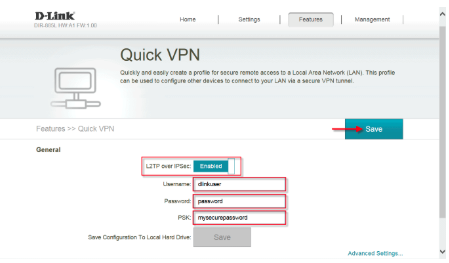
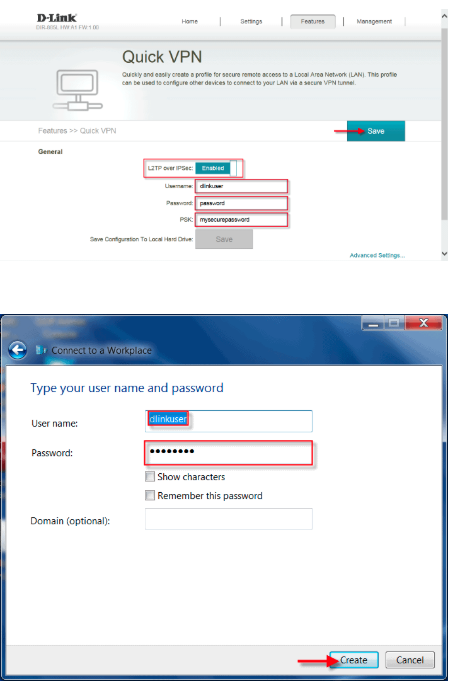
### Configure the VPN service:
– **L2TP over IPsec**– ENABLED\
– **Username**– \ (You will need this later to connect)\
– **Password**– \ (You will need this later to connect)\
– **PSK**– \ (You will need this later to connect)
Click **Save**
Router Setup is complete.
{% endstep %}
{% step %}
### From the control panel, click Network and Internet -> View network status and tasks
{% endstep %}
{% step %}
### Click Set up a new connection or network
{% endstep %}
{% step %}
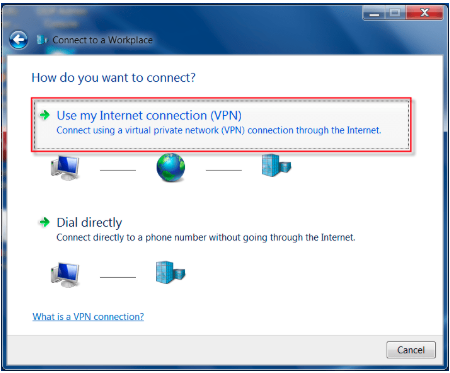
### Click Connect to a workplace
{% endstep %}
{% step %}
### Click Use my Internet connection (VPN)
{% endstep %}
{% step %}
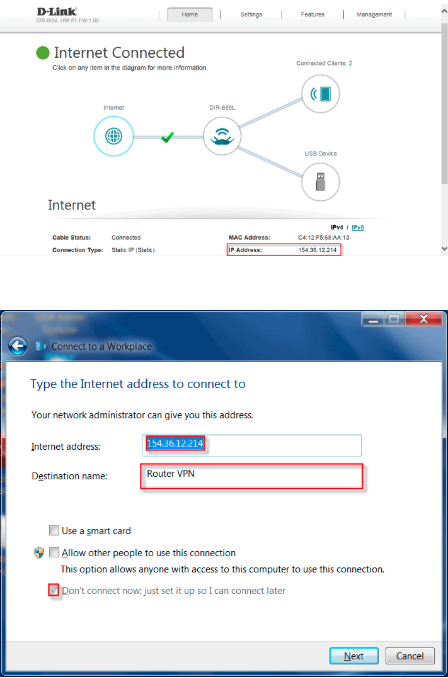
### Configure the VPN IP address and Name:
– **Internet Address**– Enter in the Public IP address of your router\
**Note**: This can be found on the home page of your router configuration
– **Destination Name-** Enter a name for the VPN Connection
Put a check next to **Don’t connect now, just set it up so I can connect later**
{% endstep %}
{% step %}
### Enter your username and password for the VPN (created earlier)
Click **Create**
{% endstep %}
{% step %}
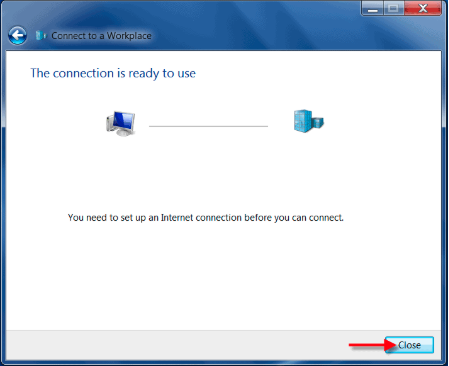
### Click Close
{% endstep %}
{% step %}
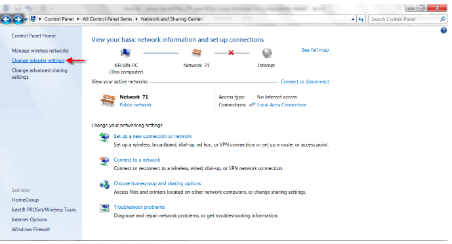
### From the Network and Sharing Center, select Change Adapter Settings from the left panel
{% endstep %}
{% step %}
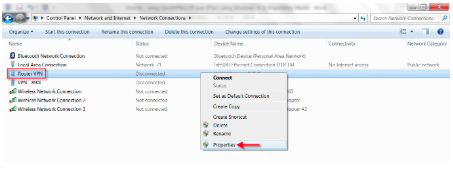
### Right click on your new VPN connection and select Properties
{% endstep %}
{% step %}
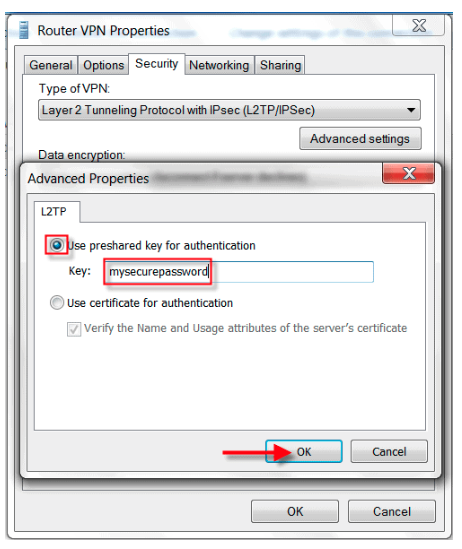
### Click on the Security Tab, Select Layer 2 Tunneling Protocol with IPsec (L2TP/IPSec) and click Advanced Settings
{% endstep %}
{% step %}
### Select Use preshared key for authentication and enter your security key (created earlier)
Click **OK to apply all settings**
{% endstep %}
{% step %}
### Right click on your new VPN Connection and click Connect
{% endstep %}
{% step %}
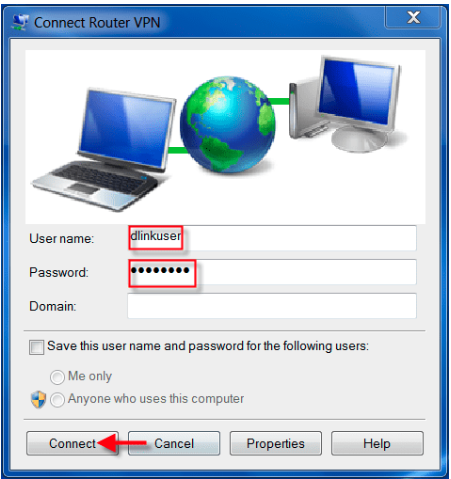
### If required, enter your VPN username and password (created earlier)
Click **Connect**
You should now be connected to your router’s VPN
**Setup is Complete.**
{% endstep %}
{% endstepper %}