# How do I configure Shareport Web Access for my DIR-885L router?

**How do I configure Shareport Web Access for my  DIR-885L router?**

\* Please ensure that the portable flashdrive or HDD has been properly mounted into the USB port.

{% stepper %}
{% step %}

### Log into your router

**New Gui**\
**White and Blue**
{% endstep %}

{% step %}

### Click Settings > SharePort

<figure><img src="https://4142062250-files.gitbook.io/~/files/v0/b/gitbook-x-prod.appspot.com/o/spaces%2FAsNvP4j1V0u2MDOjtqo2%2Fuploads%2FdCcJSkU1QVbUZ2MttfOF%2FScreenshot%202026-03-10%20at%203.52.28%E2%80%AFPM.png?alt=media&#x26;token=38cd1d10-5117-42a8-95e0-3f6a24c6d5d1" alt=""><figcaption></figcaption></figure>
{% endstep %}

{% step %}

### Ensure that Web File Access is Enabled

– Click **Create User** to create a Share Port Login Account.

<figure><img src="https://4142062250-files.gitbook.io/~/files/v0/b/gitbook-x-prod.appspot.com/o/spaces%2FAsNvP4j1V0u2MDOjtqo2%2Fuploads%2Fddz0CXGoAFGb5eW7LBBT%2FScreenshot%202026-03-10%20at%203.53.11%E2%80%AFPM.png?alt=media&#x26;token=8e48d07d-b37a-4d42-b767-2126a004b480" alt=""><figcaption></figcaption></figure>
{% endstep %}

{% step %}
Up to 10 user accounts can be used for **Web File Access** inclusive of Admin Login. **Available and Total Space** is displayed when USB Media has been properly mounted and recognised.

– Click **Create User** to create a Share Port Login Account.<br>

<figure><img src="https://4142062250-files.gitbook.io/~/files/v0/b/gitbook-x-prod.appspot.com/o/spaces%2FAsNvP4j1V0u2MDOjtqo2%2Fuploads%2FM66kU1GtZjsaoGMAXKqG%2FScreenshot%202026-03-10%20at%203.55.25%E2%80%AFPM.png?alt=media&#x26;token=f2becd04-bc69-4c79-bb27-cad066e09057" alt=""><figcaption></figcaption></figure>
{% endstep %}

{% step %}

### Fill in the User Name, Password, Permission fields as shown.

<figure><img src="https://4142062250-files.gitbook.io/~/files/v0/b/gitbook-x-prod.appspot.com/o/spaces%2FAsNvP4j1V0u2MDOjtqo2%2Fuploads%2FSSVR5CDUNXBTkLSGdFkB%2FScreenshot%202026-03-10%20at%203.57.35%E2%80%AFPM.png?alt=media&#x26;token=4b367466-7414-40ee-9258-e179289c9869" alt=""><figcaption></figcaption></figure>

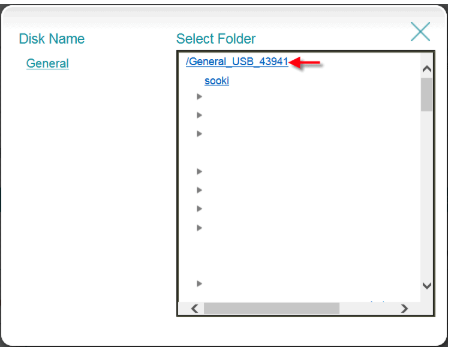
You may select the **root folder** at the **top** or **individual folder** listed on your USB Drive

<figure><img src="https://4142062250-files.gitbook.io/~/files/v0/b/gitbook-x-prod.appspot.com/o/spaces%2FAsNvP4j1V0u2MDOjtqo2%2Fuploads%2Frh6XXSbLxsTV3PrjKO6z%2FScreenshot%202026-03-10%20at%203.58.32%E2%80%AFPM.png?alt=media&#x26;token=6ec72da4-f62d-4e68-af6d-4384d6adee50" alt=""><figcaption></figcaption></figure>

Click **OK** to confirm account creation.

<figure><img src="https://4142062250-files.gitbook.io/~/files/v0/b/gitbook-x-prod.appspot.com/o/spaces%2FAsNvP4j1V0u2MDOjtqo2%2Fuploads%2FetfQ1KenvBAj1Z6a4Jn6%2FScreenshot%202026-03-10%20at%203.59.19%E2%80%AFPM.png?alt=media&#x26;token=12ce13c7-c658-4fd1-9c14-e13ece959d44" alt=""><figcaption></figcaption></figure>

Click **Save** to save SharePort account creation.

<figure><img src="https://4142062250-files.gitbook.io/~/files/v0/b/gitbook-x-prod.appspot.com/o/spaces%2FAsNvP4j1V0u2MDOjtqo2%2Fuploads%2FQklU18sEh2xXUUVZV3H3%2FScreenshot%202026-03-10%20at%203.59.59%E2%80%AFPM.png?alt=media&#x26;token=fa2ecd94-285c-4cce-b035-054bb69e99fc" alt=""><figcaption></figcaption></figure>

Open a web page on the Internet Browser: <http://shareport.local>

<figure><img src="https://4142062250-files.gitbook.io/~/files/v0/b/gitbook-x-prod.appspot.com/o/spaces%2FAsNvP4j1V0u2MDOjtqo2%2Fuploads%2FNRMTeXWtJsRZckCTI6BO%2FScreenshot%202026-03-10%20at%204.00.27%E2%80%AFPM.png?alt=media&#x26;token=cf8b6df8-f10f-4fd1-89b0-215324e997f9" alt=""><figcaption></figcaption></figure>

Key in the account details as created in the previous steps and click **Log In.**\
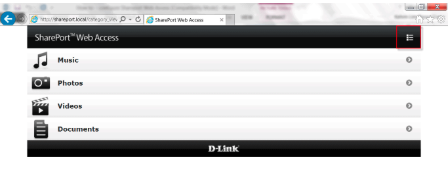
Categories within the SharePort Web Access will be displayed as shown.

<figure><img src="https://4142062250-files.gitbook.io/~/files/v0/b/gitbook-x-prod.appspot.com/o/spaces%2FAsNvP4j1V0u2MDOjtqo2%2Fuploads%2FIofZA9TuOvZHkvvH8RMN%2FScreenshot%202026-03-10%20at%204.00.57%E2%80%AFPM.png?alt=media&#x26;token=ed620a3d-f50c-4fd3-8922-5006b9286414" alt=""><figcaption></figcaption></figure>

Click on **List** icon if you wish to display the list of contents on the folder.

You can browse the files in the individual folders as shown.

<figure><img src="https://4142062250-files.gitbook.io/~/files/v0/b/gitbook-x-prod.appspot.com/o/spaces%2FAsNvP4j1V0u2MDOjtqo2%2Fuploads%2F9o7uVwnGPST363I4DcBV%2FScreenshot%202026-03-10%20at%204.01.20%E2%80%AFPM.png?alt=media&#x26;token=7f4808ee-6193-49c5-bb7a-42fca6ff5cbb" alt=""><figcaption></figcaption></figure>

{% endstep %}
{% endstepper %}