# How do I setup and install the DIR-868L router?

{% stepper %}
{% step %}

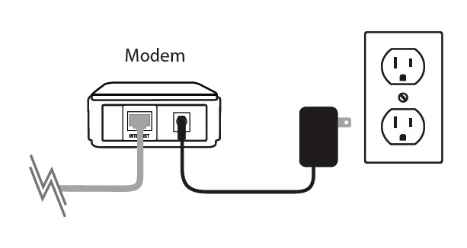
### Unplug the power to your Cable/DSL Internet modem

<figure><img src="https://4142062250-files.gitbook.io/~/files/v0/b/gitbook-x-prod.appspot.com/o/spaces%2FAsNvP4j1V0u2MDOjtqo2%2Fuploads%2FsXPmShkC7W21umkjjDwe%2FScreenshot%202026-03-12%20at%205.33.26%E2%80%AFPM.png?alt=media&#x26;token=b8efc517-0292-495f-a542-21ef9b5204b0" alt=""><figcaption></figcaption></figure>

{% endstep %}

{% step %}
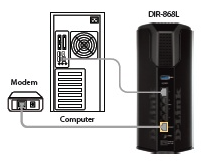
Connect an Ethernet cable from your computer/laptop to a LAN port (port 1,2,3 or 4) on the back of the DIR-868L

<figure><img src="https://4142062250-files.gitbook.io/~/files/v0/b/gitbook-x-prod.appspot.com/o/spaces%2FAsNvP4j1V0u2MDOjtqo2%2Fuploads%2FBdA3fIbm3tDdyJRXCsUC%2FScreenshot%202026-03-12%20at%205.34.16%E2%80%AFPM.png?alt=media&#x26;token=792a67d8-2f06-48b0-a8ef-483d8990bf4f" alt=""><figcaption></figcaption></figure>

{% endstep %}

{% step %}

### Connect your Cable/DSL modem to the Internet port on the DIR-868L

<figure><img src="https://4142062250-files.gitbook.io/~/files/v0/b/gitbook-x-prod.appspot.com/o/spaces%2FAsNvP4j1V0u2MDOjtqo2%2Fuploads%2F1GsAJnTFVLgD3YBFVIYI%2FScreenshot%202026-03-12%20at%205.34.33%E2%80%AFPM.png?alt=media&#x26;token=eb6d9139-0f86-4d07-ae41-85355a2123d9" alt=""><figcaption></figcaption></figure>

{% endstep %}

{% step %}

### Plug in the power for your cable or DSL broadband modem and wait for two minutes while the modem initializes.

{% endstep %}

{% step %}

### Power on the DIR-868L and wait until the ‘power’ LED on the front of the device turns green.

<figure><img src="https://4142062250-files.gitbook.io/~/files/v0/b/gitbook-x-prod.appspot.com/o/spaces%2FAsNvP4j1V0u2MDOjtqo2%2Fuploads%2Fi4MS8X9eruu3YFrxRY1f%2FScreenshot%202026-03-12%20at%205.34.58%E2%80%AFPM.png?alt=media&#x26;token=30332652-2132-4576-8cf6-b54e81951ba3" alt=""><figcaption></figcaption></figure>

{% endstep %}

{% step %}
Open an Internet browser (such as Internet Explorer) and enter <http://dlinkrouter>, <http://dlinkrouter.local> or <http://192.168.0.1> into the address bar.

<figure><img src="https://4142062250-files.gitbook.io/~/files/v0/b/gitbook-x-prod.appspot.com/o/spaces%2FAsNvP4j1V0u2MDOjtqo2%2Fuploads%2FDMphUWtujxLhT3CeiMNL%2FScreenshot%202026-03-12%20at%205.35.30%E2%80%AFPM.png?alt=media&#x26;token=fe4d125e-12ac-40d5-972b-9654523cc94e" alt=""><figcaption></figcaption></figure>

{% endstep %}

{% step %}

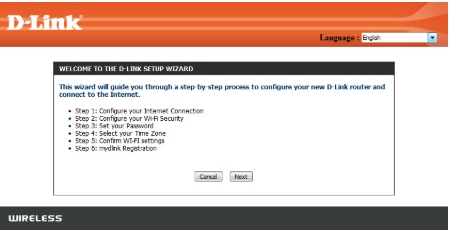
### If this is your first time logging in to the router, the Setup Wizard will start automatically.

This wizard will guide you through a step-by-step process to configure your new D-Link router and connect to the Internet. Click **Next** to continue.

<figure><img src="https://4142062250-files.gitbook.io/~/files/v0/b/gitbook-x-prod.appspot.com/o/spaces%2FAsNvP4j1V0u2MDOjtqo2%2Fuploads%2FF63q3U1oB3ddlclk57TM%2FScreenshot%202026-03-12%20at%205.36.05%E2%80%AFPM.png?alt=media&#x26;token=2a1c8fe9-8692-4757-815a-61946940a3c4" alt=""><figcaption></figcaption></figure>

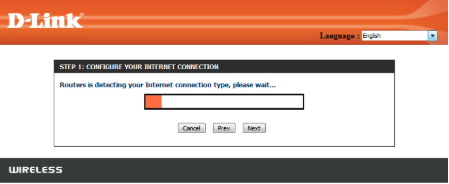
Please wait while your router detects your Internet connection type. After the router detects your Internet connection, you may need to enter information such as a username and password. This information should be provided by the company that provides your Internet, also known as an Internet Service Provider (ISP).

<figure><img src="https://4142062250-files.gitbook.io/~/files/v0/b/gitbook-x-prod.appspot.com/o/spaces%2FAsNvP4j1V0u2MDOjtqo2%2Fuploads%2FZ1hEEYHTyE3aUlbjSo7E%2FScreenshot%202026-03-12%20at%205.37.05%E2%80%AFPM.png?alt=media&#x26;token=5c20b4ea-ab5d-4bac-91b0-fc39d426774b" alt=""><figcaption></figcaption></figure>

{% endstep %}

{% step %}
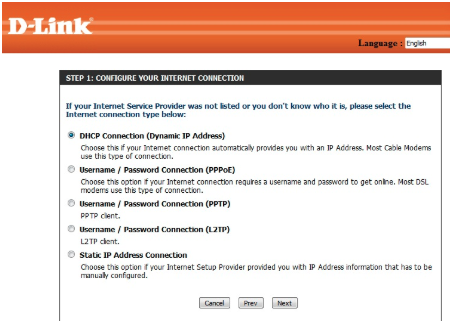
If the router detects an Internet connection, but does not detect the type of Internet connection you have, the below screen will appear. Click “**Guide me through the Internet connection settings**” to display a list of connection types to choose from.

<figure><img src="https://4142062250-files.gitbook.io/~/files/v0/b/gitbook-x-prod.appspot.com/o/spaces%2FAsNvP4j1V0u2MDOjtqo2%2Fuploads%2F9OOe7C2zS7xWaDMTOLG1%2FScreenshot%202026-03-12%20at%205.37.39%E2%80%AFPM.png?alt=media&#x26;token=efdb0659-ca29-437f-8bd0-5d20cc47256b" alt=""><figcaption></figcaption></figure>

Select your Internet connection type: **DHCP Connection (Dynamic IP Address) or Username/Password (PPPoE)**

**DHCP Connection** – This type of connection is most commonly used for cable Internet services. You will most likely not need to provide any extra information if you use this connection type.

<figure><img src="https://4142062250-files.gitbook.io/~/files/v0/b/gitbook-x-prod.appspot.com/o/spaces%2FAsNvP4j1V0u2MDOjtqo2%2Fuploads%2FNHTpuQoENEzRhBtameA2%2FScreenshot%202026-03-12%20at%205.38.03%E2%80%AFPM.png?alt=media&#x26;token=3e0485cd-bb99-4a9b-8299-f2b5f02d2399" alt=""><figcaption></figcaption></figure>

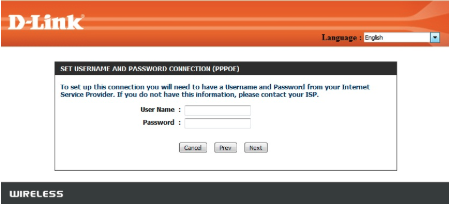
**PPPoE** – This type of connection is most commonly used for DSL Internet connections. You will most likely need to provide some additional information before you can connect to the Internet:\
•    Username – Your Internet username (provided by your Internet Service Provider)\
•    Password – Your Internet password (provided by your Internet Service Provider)

<figure><img src="https://4142062250-files.gitbook.io/~/files/v0/b/gitbook-x-prod.appspot.com/o/spaces%2FAsNvP4j1V0u2MDOjtqo2%2Fuploads%2F8zetdi6gj6E9GHpgSbpT%2FScreenshot%202026-03-12%20at%205.38.25%E2%80%AFPM.png?alt=media&#x26;token=5135bc66-c25a-44ba-a1ee-04b6289d9def" alt=""><figcaption></figcaption></figure>

{% endstep %}

{% step %}

### Enter the required information, and click Next to continue.

{% endstep %}

{% step %}
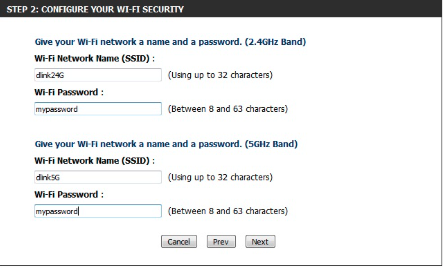
For both the 2.4 GHz and 5 GHz wireless frequencies, create a name (SSID) for your Wi-Fi network. Each Wi-Fi network will also need a password of at least 8 characters. Your wireless clients will need to have this password or key to be able to connect to your wireless network. Click **Next** to continue.

<mark style="color:$primary;">(Password suggestion: It is suggested that you choose a password that is easy for you to remember but, difficult for others to guess. Strong passwords should include a combination of letters and numbers).</mark>

<figure><img src="https://4142062250-files.gitbook.io/~/files/v0/b/gitbook-x-prod.appspot.com/o/spaces%2FAsNvP4j1V0u2MDOjtqo2%2Fuploads%2FFhLVIEGmQX8A46q1LJBA%2FScreenshot%202026-03-12%20at%205.39.13%E2%80%AFPM.png?alt=media&#x26;token=ae984219-544a-4202-9b1d-d5511e087f0c" alt=""><figcaption></figcaption></figure>

{% endstep %}

{% step %}
In order to secure your router, create a password to access the router’s web-based configuration interface. This should be different from the password to connect to the Wi-Fi network. Enter your password in the **Password** field provided, and again in the **Verify Password** field.

Click **Next** to continue.

<figure><img src="https://4142062250-files.gitbook.io/~/files/v0/b/gitbook-x-prod.appspot.com/o/spaces%2FAsNvP4j1V0u2MDOjtqo2%2Fuploads%2F1g3SKHQTmEso2RMW3iVs%2FScreenshot%202026-03-12%20at%205.40.01%E2%80%AFPM.png?alt=media&#x26;token=c5b873d6-ae2a-4e1f-9146-ebbf38037dcf" alt=""><figcaption></figcaption></figure>

<mark style="color:$primary;">You can check the</mark> <mark style="color:$primary;"></mark><mark style="color:$primary;">**Enable Graphical Authentication**</mark> <mark style="color:$primary;"></mark><mark style="color:$primary;">box to enable CAPTCHA authentication for added security. Graphical Authentication uses a challenge-response test to prevent unauthorized access by automated means:</mark>

<figure><img src="https://4142062250-files.gitbook.io/~/files/v0/b/gitbook-x-prod.appspot.com/o/spaces%2FAsNvP4j1V0u2MDOjtqo2%2Fuploads%2FIauUXhy7sBcnGQhHTa6h%2FScreenshot%202026-03-12%20at%205.40.21%E2%80%AFPM.png?alt=media&#x26;token=5663d7b4-c3bb-42b1-8df2-5af20773e2af" alt=""><figcaption></figcaption></figure>

{% endstep %}

{% step %}

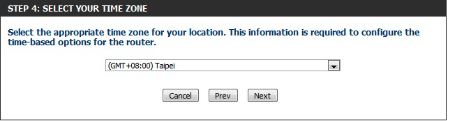
### Select your time zone from the drop-down menu and click Next to continue.

<figure><img src="https://4142062250-files.gitbook.io/~/files/v0/b/gitbook-x-prod.appspot.com/o/spaces%2FAsNvP4j1V0u2MDOjtqo2%2Fuploads%2Ft63U5h59Jk3VeZhzOJsM%2FScreenshot%202026-03-12%20at%205.40.48%E2%80%AFPM.png?alt=media&#x26;token=96a68de0-4328-4f89-8986-43d495a24f3d" alt=""><figcaption></figcaption></figure>

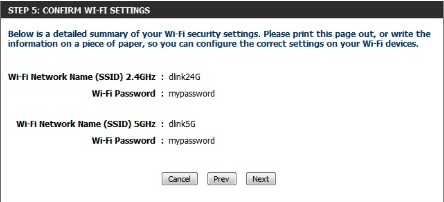
A confirmation window will appear to signify the completion of the setup wizard. A summary of your wireless network settings will also be displayed. It is recommended that you make a record of this information for future reference. Click **Next** to continue.

<figure><img src="https://4142062250-files.gitbook.io/~/files/v0/b/gitbook-x-prod.appspot.com/o/spaces%2FAsNvP4j1V0u2MDOjtqo2%2Fuploads%2FI40sqGH969rYyRJMmfXZ%2FScreenshot%202026-03-12%20at%205.41.08%E2%80%AFPM.png?alt=media&#x26;token=8b16798c-7de9-42c3-a5e6-4981f36332f3" alt=""><figcaption></figcaption></figure>

Your browser will ask you whether you wish to make a bookmark for the router’s configuration page. If you wish to create a bookmark, click **OK**, otherwise click **Cancel.**

<figure><img src="https://4142062250-files.gitbook.io/~/files/v0/b/gitbook-x-prod.appspot.com/o/spaces%2FAsNvP4j1V0u2MDOjtqo2%2Fuploads%2FV9RWDfYQ6vHoftT6z64b%2FScreenshot%202026-03-12%20at%205.41.34%E2%80%AFPM.png?alt=media&#x26;token=5a48a859-70aa-476e-a044-eec5bbac56af" alt=""><figcaption></figcaption></figure>

If you clicked Yes, a window may appear (depending on your web browser) to create a bookmark. Follow the on-screen instructions.

<figure><img src="https://4142062250-files.gitbook.io/~/files/v0/b/gitbook-x-prod.appspot.com/o/spaces%2FAsNvP4j1V0u2MDOjtqo2%2Fuploads%2FEW4MDzWRqAiwheTiR4JT%2FScreenshot%202026-03-12%20at%205.41.59%E2%80%AFPM.png?alt=media&#x26;token=e87611b2-be09-4f99-bba9-d22748ac8bc4" alt=""><figcaption></figcaption></figure>

<br>
{% endstep %}
{% endstepper %}

**Mydlink™ Cloud Services registration:**

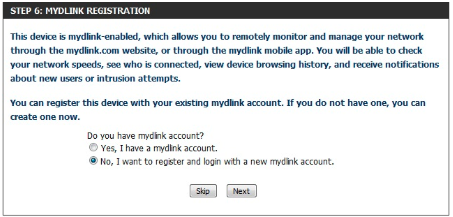
With mydlink Cloud Services you can remotely manage, control, and monitor your home network from anywhere using the mydlink mobile apps or mydlink web portal. You can check up on your network’s Internet activity, and see what devices are connected to your network. You can also use the mydlink SharePort app to remotely access content on a USB drive connected to your router.

You may choose **Next** to register this device with mydlink for free. Or you may choose **Skip** to register later.

To get started with mydlink Cloud Services, you are required to have a mydlink account, and need to register this router to your mydlink account. Select **Yes, I have a mydlink account** if you have previously registered a mydlink account; or select **No, I want to register and login with a new mydlink account** if you would like to create a new mydlink account.

<figure><img src="https://4142062250-files.gitbook.io/~/files/v0/b/gitbook-x-prod.appspot.com/o/spaces%2FAsNvP4j1V0u2MDOjtqo2%2Fuploads%2FzlzoY6M6uNhX8g1ZAIDC%2FScreenshot%202026-03-12%20at%205.42.21%E2%80%AFPM.png?alt=media&#x26;token=b73fec62-a61c-49bb-9476-347086d5e067" alt=""><figcaption></figcaption></figure>

a) If you selected “Yes, I have a mydlink account,” please enter your existing mydlink account name and password. Then click **Login.**

<figure><img src="https://4142062250-files.gitbook.io/~/files/v0/b/gitbook-x-prod.appspot.com/o/spaces%2FAsNvP4j1V0u2MDOjtqo2%2Fuploads%2FD0iY81aX2csg3fQdNDPP%2FScreenshot%202026-03-12%20at%205.42.47%E2%80%AFPM.png?alt=media&#x26;token=2e1a5cfb-4407-4046-aaa7-169eae523499" alt=""><figcaption></figcaption></figure>

b) If you selected “No, I want to register and login with a new mydlink account,” please fill in the required information and check the **I Accept the mydlink terms and conditions** box in order to create a new mydlink account.

**Note:** Your mydlink password is the password to log in to the mydlink web portal and mydlink mobile apps. This is NOT the same as your router’s login information or wireless security password.
<figure><img src="https://4142062250-files.gitbook.io/~/files/v0/b/gitbook-x-prod.appspot.com/o/spaces%2FAsNvP4j1V0u2MDOjtqo2%2Fuploads%2FMNdt0CJtJhrHhHEbxeEa%2FScreenshot%202026-03-12%20at%205.43.07%E2%80%AFPM.png?alt=media&#x26;token=4ed285b1-dd69-4cf2-81d1-07a079d5fdfa" alt=""><figcaption></figcaption></figure>

<br>