> For the complete documentation index, see [llms.txt](https://support.dlink.com.sg/llms.txt). Markdown versions of documentation pages are available by appending `.md` to page URLs; this page is available as [Markdown](https://support.dlink.com.sg/consumer/wi-fi-router/dir-868l/faqs/how-do-i-configure-port-forwarding-on-my-dir-868l.md).
# How do I configure Port Forwarding on my DIR-868L?
Example: Some applications require port forwarding to be set up in order to communicate with other computers over the Internet.
{% stepper %}
{% step %}
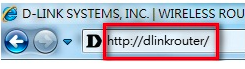
### Example: Some applications require port forwarding to be set up in order to communicate with other computers over the Internet.
{% endstep %}
{% step %}
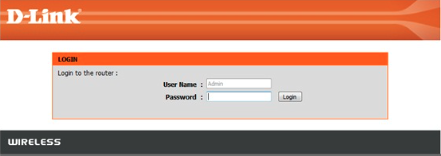
### The default username is Admin. Enter your administrator password. If you have not changed the default password, this field should be left blank. Click Login.
{% endstep %}
{% step %}
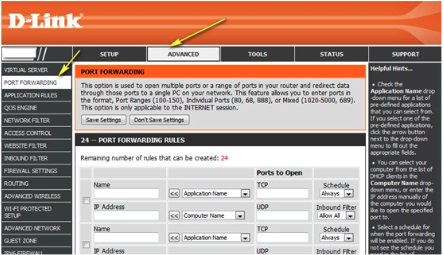
### Click the Advanced tab on top and then click Port Forwarding from the menu on the left-hand side.
{% endstep %}
{% step %}
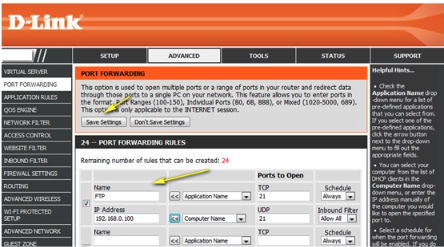
Check the box beside the rule to enable the rule. For pre-defined applications, use the **Application Name** drop-down menu and click on the arrow button (<<) next to the drop-down menu to auto-fill the appropriate field. For non-pre-defined applications, please enter the desired port. You can open ports for both the **TCP** and **UDP** protocols. If you do not wish for the rule to be permanently enabled, you can select a schedule from the Schedule drop-down menu. You can also use the **Inbound Filter** drop-down menu to select whether you would like to **Accept All** or **Deny All** incoming connections on the specified port(s).
{% endstep %}
{% step %}
Select the computer or device from the list of DHCP clients in the **Computer Name** drop-down menu and click the arrow button (<<) to automatically populate the field, or manually enter the IP address of the device you want to open the specified port for.
{% endstep %}
{% step %}
### Click Save Settings when finished.
{% endstep %}
{% endstepper %}