# DIR-868L-How to setup TM & Maxis

{% stepper %}
{% step %}

### Connect Your PC (Laptop) to the Router (Port 1,2,3,4 either one of them) using Network cable.&#x20;

{% endstep %}

{% step %}

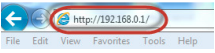
### Launch your IE (Internet explorer) and key in 192.168.0.1 in the address column and press Enter.&#x20;

<figure><img src="https://4142062250-files.gitbook.io/~/files/v0/b/gitbook-x-prod.appspot.com/o/spaces%2FAsNvP4j1V0u2MDOjtqo2%2Fuploads%2FylctLshRuUKZyzlJh6iN%2FScreenshot%202026-03-11%20at%203.08.54%E2%80%AFPM.png?alt=media&#x26;token=c6e081bd-acc9-47ed-9f90-cb09955eb89a" alt=""><figcaption></figcaption></figure>

{% endstep %}

{% step %}

### Enter your Username: admin and no password (if it is default) click on Log In&#x20;

<figure><img src="https://4142062250-files.gitbook.io/~/files/v0/b/gitbook-x-prod.appspot.com/o/spaces%2FAsNvP4j1V0u2MDOjtqo2%2Fuploads%2FCq6WPmpLq0cNL1qRKXBn%2FScreenshot%202026-03-11%20at%203.09.15%E2%80%AFPM.png?alt=media&#x26;token=a3379e46-ba30-415c-aa4d-faea4a5cc75b" alt=""><figcaption></figcaption></figure>

{% endstep %}

{% step %}

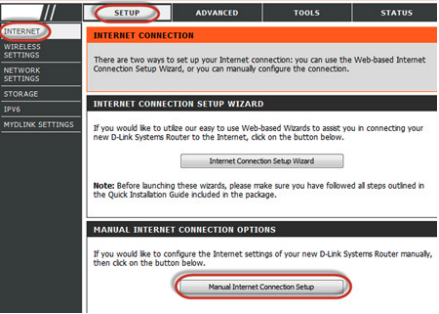
### You will see a D-Link configuration page, click on Setup > Internet > Manual Internet Connection Setup.&#x20;

<figure><img src="https://4142062250-files.gitbook.io/~/files/v0/b/gitbook-x-prod.appspot.com/o/spaces%2FAsNvP4j1V0u2MDOjtqo2%2Fuploads%2FXUYuG0rrs8sueNcj4Sxg%2FScreenshot%202026-03-11%20at%203.09.40%E2%80%AFPM.png?alt=media&#x26;token=7319c53f-8332-49dc-a2c6-adf4748415db" alt=""><figcaption></figcaption></figure>

{% endstep %}

{% step %}

### For My Internet Connection select Unifi-PPPoE (Username / Password)

<figure><img src="https://4142062250-files.gitbook.io/~/files/v0/b/gitbook-x-prod.appspot.com/o/spaces%2FAsNvP4j1V0u2MDOjtqo2%2Fuploads%2FGdb69VDpWTqmelT59vES%2FScreenshot%202026-03-11%20at%203.10.04%E2%80%AFPM.png?alt=media&#x26;token=33e3873d-d9aa-4377-bc23-6a4266f807d0" alt=""><figcaption></figcaption></figure>

{% endstep %}

{% step %}
Address Mode: Dynamic IP\
Username: Username provided by your ISP\
Password: Password provided by your ISP

<figure><img src="https://4142062250-files.gitbook.io/~/files/v0/b/gitbook-x-prod.appspot.com/o/spaces%2FAsNvP4j1V0u2MDOjtqo2%2Fuploads%2FUR5DHoLnhraZIjqDN8Zm%2FScreenshot%202026-03-11%20at%203.10.39%E2%80%AFPM.png?alt=media&#x26;token=ece9cfe9-ee37-4cdf-a360-8fe30e1bb267" alt=""><figcaption></figcaption></figure>

{% endstep %}

{% step %}
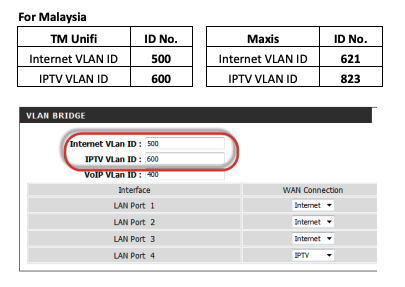
Under VLAN Bridge, please enter the internet VLAN ID and IPTV VLAN ID, please check with your ISP for your VLAN ID

<figure><img src="https://4142062250-files.gitbook.io/~/files/v0/b/gitbook-x-prod.appspot.com/o/spaces%2FAsNvP4j1V0u2MDOjtqo2%2Fuploads%2Fpz25oa2b4NYyMnv38ij1%2FScreenshot%202026-03-11%20at%203.11.05%E2%80%AFPM.png?alt=media&#x26;token=31bcd36b-7de2-4f7c-9065-b54a52699159" alt=""><figcaption></figcaption></figure>

{% endstep %}

{% step %}

### Click on Save setting to complete internet setup.&#x20;

<figure><img src="https://4142062250-files.gitbook.io/~/files/v0/b/gitbook-x-prod.appspot.com/o/spaces%2FAsNvP4j1V0u2MDOjtqo2%2Fuploads%2FK74MxSgaB2biVAVAHSAf%2FScreenshot%202026-03-11%20at%203.11.30%E2%80%AFPM.png?alt=media&#x26;token=62d1a3a8-82c3-45a5-a5bd-7c783bf98bfa" alt=""><figcaption></figcaption></figure>

{% endstep %}
{% endstepper %}