> For the complete documentation index, see [llms.txt](https://support.dlink.com.sg/llms.txt). Markdown versions of documentation pages are available by appending `.md` to page URLs; this page is available as [Markdown](https://support.dlink.com.sg/consumer/wi-fi-router/dir-868l/faqs/dir-868l-how-to-access-usb-media-on-router-win-and-mac.md).
# DIR-868L – How to Access USB media on Router (Win and MAC)?
{% stepper %}
{% step %}
### Connect the LAN cable from the computer to any of 4 ports of the router.
{% endstep %}
{% step %}
Open a web browser such as Internet Explorer, Mozilla Firefox or Google Chrome. On\
the address bar of the web browser type in there the IP Address of the router and then press the Enter key on your keyboard.
{% endstep %}
{% step %}
Enter the **Password** (**Wireless Password**) which show on the sticker label at the base\
of the router and click on **Login** to enter the web admin page again.
{% endstep %}
{% step %}
### Click on the Setup tab at the top then click Storage from the menu on the left-hand side
{% endstep %}
{% step %}
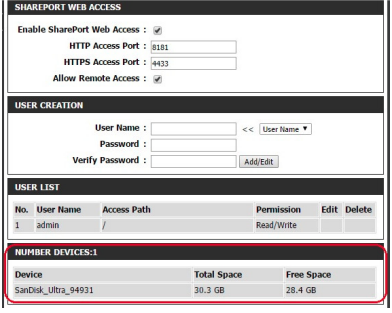
Check the storage status. The information displayed here should reflect the\
characteristics of the USB drive plugged into the USB port.
{% endstep %}
{% step %}
### From a computer connected to the router:
#### Windows XP
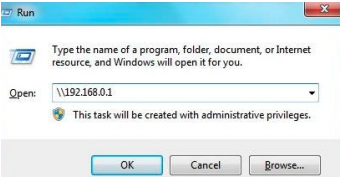
Click Start > Run
1. Type \ IP address of the router (default is 192.168.0.1)
2. Example- \192.168.0.1
3. Click OK
#### Windows 7 / Windows 10
1. Click Start > All Programs > Accessories > Run (Windows 7)
2. Click Start > All apps > Window System > Run (Windows 10)
3. Type \ IP address of the router (default is 192.168.0.1)
4. Example- \192.168.0.1
5. Click OK
6. If you are prompted to enter a Username and Password, enter the credentials that you use to log in to the web-based configuration utility.
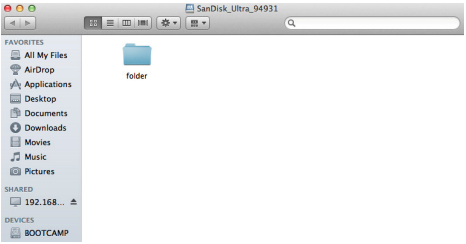
7. A window will appear, showing the shared folder.
#### MAC OS
1. Click **Go > Connect to Server**
2. Type smb://ip of router (default is 192.168.0.1)
Example- smb://192.168.0.1
Click **Connect**
3. If you are prompted to enter a Username and Password, enter the credentials that you use to log in to the web-based configuration utility.
{% endstep %}
{% endstepper %}