> For the complete documentation index, see [llms.txt](https://support.dlink.com.sg/llms.txt). Markdown versions of documentation pages are available by appending `.md` to page URLs; this page is available as [Markdown](https://support.dlink.com.sg/consumer/wi-fi-router/dir-2660/faqs/dir-2660-how-to-setup-network-with-d-link-wifi-apps.md).
# DIR-2660-How to setup network with D-Link Wifi Apps
{% stepper %}
{% step %}
### Connect to current Exo mesh router Wi-Fi
{% endstep %}
{% step %}
### Open D-Link Wi-Fi Apps on the Android mobile device.
{% endstep %}
{% step %}
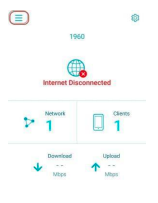
### Click on Menu Icon.
{% endstep %}
{% step %}
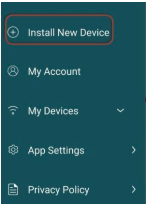
### Click on Install New Device.
{% endstep %}
{% step %}
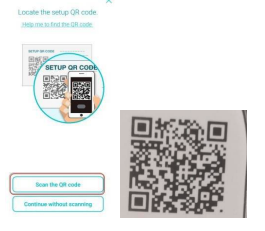
### Click on Scan the QR code.
b) Scan the **QR code** on the device
{% endstep %}
{% step %}
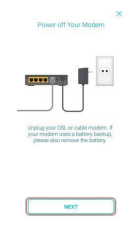
### Power off the modem.
b) Click on **NEXT**
{% endstep %}
{% step %}
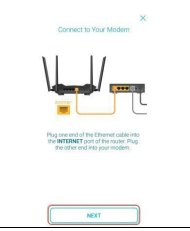
### Plug one end of the Ethernet cable into Internet port of DIR-2660.
b) Plug the other end of the Ethernet cable into Modem.\
c) Click on **NEXT.**
{% endstep %}
{% step %}
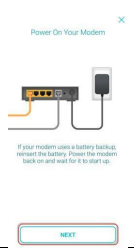
### Power on your Modem.
b) Click on **NEXT**.
{% endstep %}
{% step %}
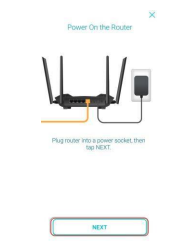
### Power on DIR-3060
b) Click on **NEXT**.
{% endstep %}
{% step %}
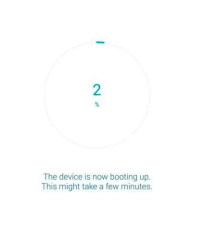
### Wait for the device to boot up
{% endstep %}
{% step %}
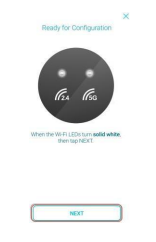
### Ensure both Wi-Fi LEDs turn Solid White.
b) Click on NEXT.
{% endstep %}
{% step %}
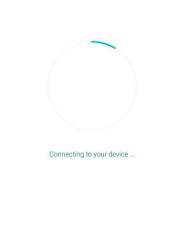
### Wait for Connecting to your device to be finish.
{% endstep %}
{% step %}
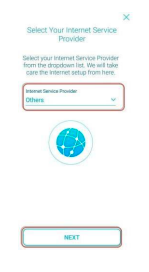
### Select Others for Internet Service Provider
b) Click on NEXT.
{% endstep %}
{% step %}
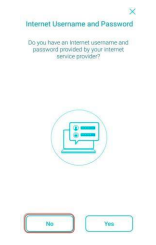
### Click on No.
{% endstep %}
{% step %}
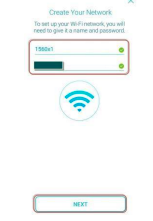
### Enter a new Wi-Fi name and Password.
b) Click on **NEXT**.
{% endstep %}
{% step %}
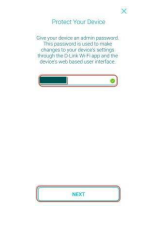
### Enter a new password for the device.
b) Click on **NEXT**.
{% endstep %}
{% step %}
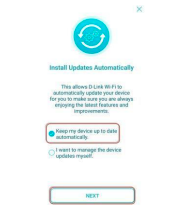
### Select Keep my device up to date automatically.
b) Click on **NEXT**.
{% endstep %}
{% step %}
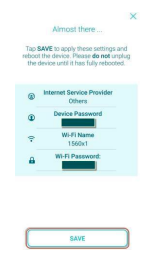
### Click on SAVE.
{% endstep %}
{% step %}
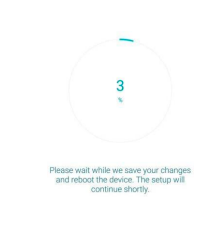
### Wait for setting to be save.
{% endstep %}
{% step %}
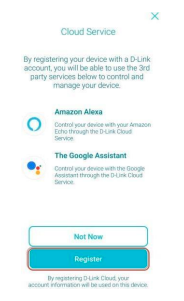
### Click on Register
{% endstep %}
{% step %}
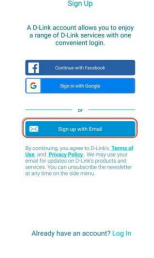
### Click on Sign up with Email.
{% endstep %}
{% step %}
### Enter Name.
b) Enter **Email Address**.\
c) Enter **Password**.\
d) Put **tick** beside **I have read and agree to the Terms of Use and Privacy Policy**\
e) Click on **Sign Up**.
{% endstep %}
{% step %}
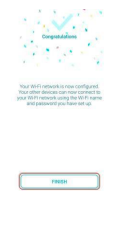
### Click on FINISH.
{% endstep %}
{% endstepper %}