# Covr-2202 – How to setup admin password on COVR

{% stepper %}
{% step %}
Connect the second set Covr to computer with lan cable. Open your Internet browser (Internet Explorer/Firefox) and enter <http://covr.local./>

<figure><img src="https://4142062250-files.gitbook.io/~/files/v0/b/gitbook-x-prod.appspot.com/o/spaces%2FAsNvP4j1V0u2MDOjtqo2%2Fuploads%2FJBJ1JYD0bPL52Ho8h5tL%2FScreenshot%202026-03-17%20at%2011.41.17%E2%80%AFAM.png?alt=media&#x26;token=d80db935-4357-4d9e-9954-6ed5bcc95e96" alt=""><figcaption></figcaption></figure>

{% endstep %}

{% step %}

### Enter your admin password and tap, Log In

<figure><img src="https://4142062250-files.gitbook.io/~/files/v0/b/gitbook-x-prod.appspot.com/o/spaces%2FAsNvP4j1V0u2MDOjtqo2%2Fuploads%2F53ttpPflQXE5BLGVAtHP%2FScreenshot%202026-03-17%20at%2011.41.39%E2%80%AFAM.png?alt=media&#x26;token=c398eb69-4661-41d4-9d0f-4d74a6c4cc00" alt=""><figcaption></figcaption></figure>
{% endstep %}

{% step %}

### Tap on Management, and then click System Admin.

<figure><img src="https://4142062250-files.gitbook.io/~/files/v0/b/gitbook-x-prod.appspot.com/o/spaces%2FAsNvP4j1V0u2MDOjtqo2%2Fuploads%2FcZgTf6fh8PFOyi9t7AXG%2FScreenshot%202026-03-17%20at%2011.42.02%E2%80%AFAM.png?alt=media&#x26;token=d6fae875-4d31-4f93-8231-a43457a651aa" alt=""><figcaption></figcaption></figure>

{% endstep %}

{% step %}

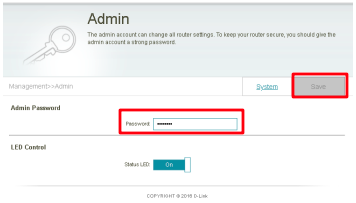
### Enter Admin Password and then click Save.

<figure><img src="https://4142062250-files.gitbook.io/~/files/v0/b/gitbook-x-prod.appspot.com/o/spaces%2FAsNvP4j1V0u2MDOjtqo2%2Fuploads%2FpU6aNWIbl27qfg6vmdc2%2FScreenshot%202026-03-17%20at%2011.42.23%E2%80%AFAM.png?alt=media&#x26;token=46912537-d626-438a-96a4-19c4ea195c23" alt=""><figcaption></figcaption></figure>

{% endstep %}
{% endstepper %}