> For the complete documentation index, see [llms.txt](https://support.dlink.com.sg/llms.txt). Markdown versions of documentation pages are available by appending `.md` to page URLs; this page is available as [Markdown](https://support.dlink.com.sg/consumer/wi-fi-7-multi-gigabit-router/dir-be3602/faqs/how-to-factory-reset-my-d-link-dir-be3602-router.md).
# How to Factory Reset my D-Link DIR-BE3602 Router?
If you experience login issues or need to restore the router to its original settings, you can perform a factory reset. This will erase all customized settings, including Wi-Fi names, passwords, and a
If you experience login issues or need to restore the router to its original settings, you can perform a factory reset. This will erase all customized settings, including Wi-Fi names, passwords, and admin credentials.
**Option 1: Reset Using the Reset Button**
{% stepper %}
{% step %}
Locate the **Reset** button
* You’ll find a small RESET button on the back or bottom panel of your DIR-BE3602 router.
{% endstep %}
{% step %}
Press and hold the **Reset** button
* Use an unfolded paperclip or pin to press and hold the RESET button for about 10–15 seconds until the router’s LED indicator starts blinking.
{% endstep %}
{% step %}
Wait for the router to **reboot**
* The router will automatically restart. Once the LED turns solid, the reset is complete.
{% endstep %}
{% endstepper %}
Note: After resetting, your router’s settings will return to factory defaults.
* Default IP address: **192.168.0.1**
* Default username: **admin**
* Default password: ***(refer to the router’s label located at the back)***
**Option 2: Reset Through the Web Interface**
If you can still log in to the router’s web configuration page, you can reset it from there.
{% stepper %}
{% step %}
Connect to the router via Wi-Fi or Ethernet cable
{% endstep %}
{% step %}
Open a web browser and go to **192.168.0.1** or ****
{% endstep %}
{% step %}
Log in using your admin credentials.
{% endstep %}
{% step %}
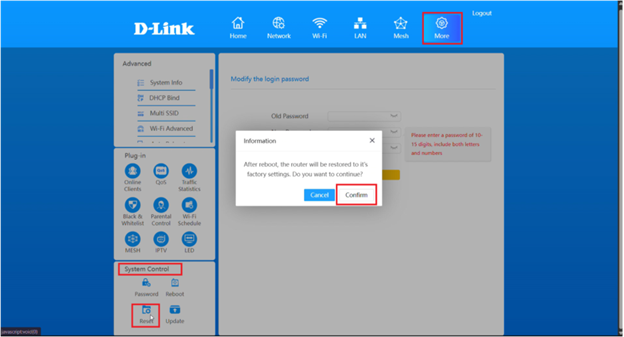
Go to **More** → **System Control**
{% endstep %}
{% step %}
Click **Reset**
{% endstep %}
{% step %}
Click **Confirm** when prompted
{% endstep %}
{% step %}
The router will restart, and all settings will be restored to factory defaults.
{% endstep %}
{% endstepper %}
**After the Reset**
Once the router restarts:
* Reconnect to the default Wi-Fi name (SSID) shown on the router label.
* Log in again using admin as the username.
* Reconfigure your Wi-Fi settings, Internet connection, and admin password.