> For the complete documentation index, see [llms.txt](https://support.dlink.com.sg/llms.txt). Markdown versions of documentation pages are available by appending `.md` to page URLs; this page is available as [Markdown](https://support.dlink.com.sg/consumer/aquila-pro-ai-wi-fi-6-router/m30/faqs/setting-up-m30-using-aquila-pro-ai-app.md).
# Setting up M30 Using Aquila Pro AI App
{% stepper %}
{% step %}
Search and install the free AQUILA PRO AI app available on the App Store or Google\
Play
NOTE: Please activate your newly registered account within 7 days. If the verification email\ landed in your Spam folder, remember to move the email to your Inbox so that you can click on the activation button for account activation.
{% endstep %}
{% step %}
### Launch the AQUILA PRO AI app from the home screen of your device.
{% endstep %}
{% step %}
Sign in on the app using an email account. If you already have a D-Link account, you\
can tap **Sign in**. It allows you to use cloud services to control and manage your device\
including the third-party voice control apps or tap **Create Account**, if you don’t have an\
account yet then **Sign Up**.
{% endstep %}
{% step %}
Tap **Install New Device** or + icon in the middle. Scan the Setup code on the device\
label located at the bottom of the router. Follow the on-screen instructions to complete\
the setup.
{% endstep %}
{% step %}
### Select “Set Up as Router” if you plan to use it as a router.
{% endstep %}
{% step %}
Modify your Wi-Fi name (SSID) and secure a unique password for security or you can\
use the default Wi-Fi name and Password by clicking “**Use the default Wi-Fi name and**\
**password**” at the bottom.
{% endstep %}
{% step %}
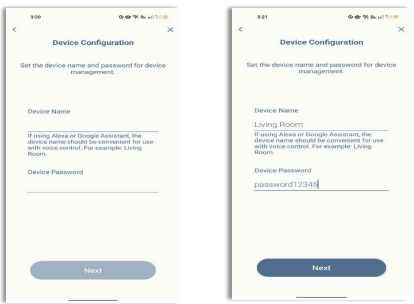
### Set Device Name and Device/Admin Password, then tap NEXT.
NOTE: It is strongly recommended that you change the default device password for accessing the router’s configuration page.
{% endstep %}
{% step %}
### To save a screenshot of your device settings, tap the camera icon below, then hit Next.
{% endstep %}
{% step %}
### The device is now restarting and saving its settings.
{% endstep %}
{% step %}
Go to the network settings of your mobile device and make sure you are connected to\
the Wi-Fi.
{% endstep %}
{% step %}
Power on the second M30 and wait for it to boot up (the LED will turn blinking orange to\
solid white) once it becomes solid white. Click **Continue** and press **Next**.
{% endstep %}
{% step %}
Set up is complete. After adding both M30 2 Packs, verify your connection by connecting\
to your D-Link router to confirm if Wi-Fi is working, or use devices to connect to your WiFi network.
{% endstep %}
{% endstepper %}