> For the complete documentation index, see [llms.txt](https://support.dlink.com.sg/llms.txt). Markdown versions of documentation pages are available by appending `.md` to page URLs; this page is available as [Markdown](https://support.dlink.com.sg/consumer/aquila-pro-ai-wi-fi-6-router/m30/faqs/how-to-upgrade-the-firmware-of-the-m30.md).
# How to upgrade the firmware of the M30
#### AQUILA PRO AI App
{% stepper %}
{% step %}
Open the AQUILA PRO AI app on your device. Then **Sign in**. (Make sure you’re\
connected to your Router’s Wi-Fi)
{% endstep %}
{% step %}
### Tap your device (M60 – Living Room)
{% endstep %}
{% step %}
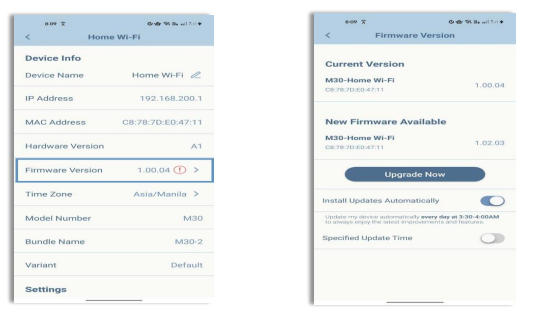
Look for the **Firmware Version** and see if there is any available firmware. To enable the\
automatic updates feature, ensure that **Install Updates Automatically** is toggled on.\
You can configure Update Settings such as Scheduling updates during specific hours.
{% endstep %}
{% step %}
Once Automatic Update is enabled, the router will periodically check for new firmware\
releases and automatically start the update process.
{% endstep %}
{% step %}
The upgrade may take up to 5 minutes to complete. During the upgrade process, the\
LED turns blinking orange, and the device willrestart automatically, with the LED turning\
solid white once completed.
{% endstep %}
{% endstepper %}
#### WebGUI
{% stepper %}
{% step %}
Connect your computer or device to one of the router’s LAN ports using another ethernet\
cable or via Wi-Fi (By default, Password located on the label sticker at the back of the\
router)
{% endstep %}
{% step %}
Visit the support page and look for the latest firmware version of your specific router\
model and download the file on your computer. or
{% endstep %}
{% step %}
Open a web browser and enter in your browser’s URL field\
(where “xxxx” are the last four digits of the M30’s MAC address). Example:\
The web address and default admin password are printed on the device label at the\ bottom of the device.
NOTE: If you have changed the password and cannot remember it, you will need to reset the\ router to factory defaults.
{% endstep %}
{% step %}
### Click Management on the left pane, then click Upgrade.
* **Master**: Displays the name of the master router.
* **Firmware Version**: Displays the current firmware version of the router.
{% endstep %}
{% step %}
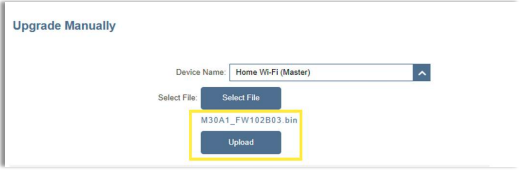
### Click Advanced Settings then Upgrade Manually
* **Device Name**: Select a device in the mesh network for manual update.
* **Select File**: Click the Select File button and browse your computer to locate the\
firmware file (.bin) you downloaded. Highlight the file by clicking on it once and\
then click **Open**. The name of the file will be displayed next to the **Select**\
**File** button.
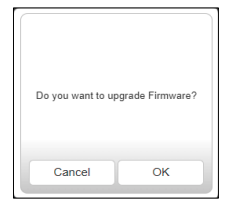
* Click **Upload**, then hit **OK** to commence the firmware upgrade process. It may\
take up to 5 minutes for the upgrade to complete.
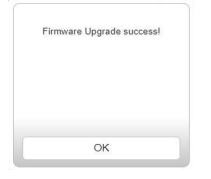
* The device will automatically restart once the firmware upgrade has been\
completed. You will need to log in again using your Administrator credentials.
{% endstep %}
{% endstepper %}
#### Automatic Upgrade
**Check for New Firmware**:\
Click this button to prompt the router to automatically check for a new firmware version. If a newer version is found, click Upgrade Firmware to download and install the new firmware.
**Automatic Upgrade**:
If enabled, the router will automatically upgrade to the latest firmware. The system will automatically upgrade to the latest firmware at 3:30-4:00 AM every day.
**Choose Upgrade Time**:
Enable this function to let the router automatically upgrade to its latest firmware at a set time every day.
**Upgrade Time**: Configurable if Choose Upgrade Time is enabled. Set the hour and minute to\
automatically upgrade the router.
Hit **OK** to start the firmware upgrade process
The upgrade may take up to 5 minutes to complete. During the upgrade process, the LED turns\
blinking orange, and the device will restart automatically, with the LED light turning solid white once completed.