> For the complete documentation index, see [llms.txt](https://support.dlink.com.sg/llms.txt). Markdown versions of documentation pages are available by appending `.md` to page URLs; this page is available as [Markdown](https://support.dlink.com.sg/consumer/aquila-pro-ai-wi-fi-6-router/m30/faqs/how-to-change-admin-password-on-m30.md).
# How to change admin password on M30
#### AQUILA PRO AI App
{% stepper %}
{% step %}
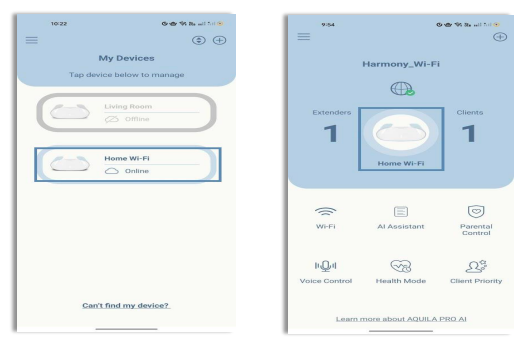
Open the AQUILA PRO AI app on your mobile device. Then **Sign in**. (Make sure you’re\
connected to your Router’s Wi-Fi)
{% endstep %}
{% step %}
### Tap your device (M30 – WiFi) then tap Home Wi-fi
{% endstep %}
{% step %}
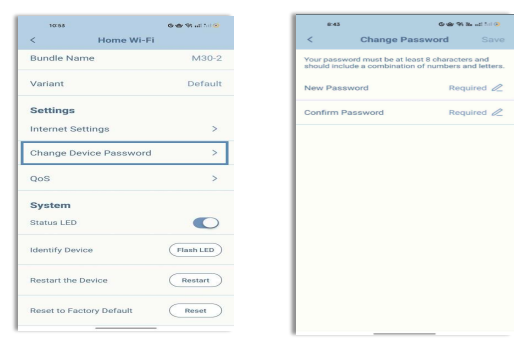
Look for **Change Device Password**, enter a **New Password** and **Confirm Password**,\
then tap **Save**.
{% endstep %}
{% endstepper %}
#### WebGUI
{% stepper %}
{% step %}
Connect your computer or device to one of the router’s LAN ports using another ethernet\
cable or via Wi-Fi (By default, Password located on the label sticker at the back of the\
router)
{% endstep %}
{% step %}
Open your web browser and enter into the browser (xxxx\
represents the last 4 digits of the MAC address). Enter the Admin Password and click\
login to start the configuration process
The web address and default admin password are printed on the device label at the bottom of the device
NOTE: If you have changed the password and cannot remember it, you will need to reset the\ router to factory defaults.
{% endstep %}
{% step %}
### In the Management tab on the left side of the page, click System Admin
{% endstep %}
{% step %}
Enter a new password for the administrator account. You will need to enter this\
password whenever you configure the router using a web browser.
{% endstep %}
{% step %}
### Click Save at any time to save the changes you have made on this page.
{% endstep %}
{% endstepper %}