> For the complete documentation index, see [llms.txt](https://support.dlink.com.sg/llms.txt). Markdown versions of documentation pages are available by appending `.md` to page URLs; this page is available as [Markdown](https://support.dlink.com.sg/consumer/aquila-pro-ai-wi-fi-6-router/m30/faqs/how-do-i-set-up-a-time-and-schedule-on-my-m30.md).
# How do I set up a Time and Schedule on my M30
### AQUILA PRO AI App
{% stepper %}
{% step %}
Open the AQUILA PRO AI app on your device. Then Sign in. (Make sure you’re\
connected to your Router’s Wi-Fi)
{% endstep %}
{% step %}
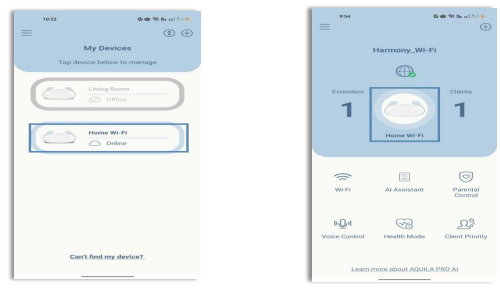
### Tap your device (M30 – Home Wifi ) then, Click on Home Wi-Fi
{% endstep %}
{% step %}
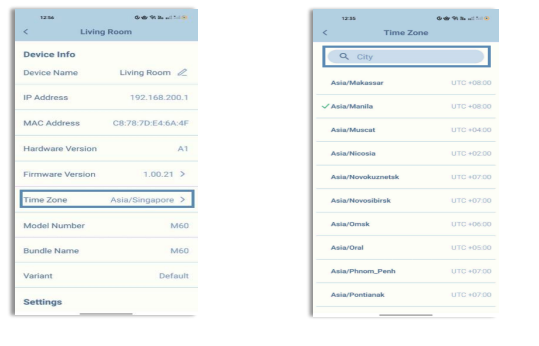
Locate and Tap **Time Zone**. You can enter the country name into the search bar and\
select it, make sure it has a green check mark beside the country time zone
{% endstep %}
{% step %}
Click the back button and confirm if the time zone has been updated by checking within\
the app.
{% endstep %}
{% endstepper %}
### WebGUI
{% stepper %}
{% step %}
Connect your computer or device to one of the router’s LAN ports using another ethernet\
cable or via Wi-Fi (By default, Password located on the label sticker at the back of the\
router)
{% endstep %}
{% step %}
If this is your first time installing the router, open your web browser and enter\
into the browser (xxxx represents the last 4 digits of the\
MAC address). Enter the Admin Password and click login to start the configuration\
process.
The web address and default admin password are printed on the device label\ at the bottom of the device.
NOTE: If you have changed the password and cannot remember it, you will need to reset the\ router to factory defaults.
{% endstep %}
{% step %}
### In the Management tab on the left side of the page, click Time & Schedule
• Time Configuration
* **Time Zone**: Select your time zone from the drop-down menu.
* **Time**: Displays the current date and time of the device.
• Automatic Time Configuration
* **NTP Server**: Select a server (**D-Link NTP Server or Google NTP**\
**Server**) from the drop-down menu to synchronize the time and date for\
your router. Choose **Manual** to set the NTP server's IP address or enter\
the domain name.
• Time & Schedule – Schedule
* Some functions can be controlled through a pre-configured schedule. To\
create, edit, or delete schedules, click **Schedule** from the **Time** page.
To remove a rule, click on the trash can icon in the **Delete** column. To edit a rule,\
click on its pencil icon in the **Edit** column. To create a new rule, click the **Add**\
**Device** button. Click Save when you are done. If you edit or create a rule, the\
following screen will appear:
First, enter a name for your schedule in the **Name** field
Each box represents half an hour, with the time at the top of each column and\
the day of the week to the left of each row. To add a time period to a schedule,\
simply click on the starting hour and drag to the ending hour. You can add\
multiple days and multiple periods per day to the schedule.
\
To remove a time period from the schedule, click on the cross icon at the end of\
the highlighted section.
\
Click **Apply** when you are done.
{% endstep %}
{% endstepper %}