> For the complete documentation index, see [llms.txt](https://support.dlink.com.sg/llms.txt). Markdown versions of documentation pages are available by appending `.md` to page URLs; this page is available as [Markdown](https://support.dlink.com.sg/consumer/aquila-pro-ai-wi-fi-6-router/m30/faqs/how-do-i-log-in-to-the-admin-page-of-my-m30-wi-fi-6-smart-mesh-router.md).
# How do I log in to the admin page of my M30 Wi-Fi 6 Smart Mesh Router
{% stepper %}
{% step %}
Connect your computer or device to one of the router’s LAN ports using another ethernet\
cable or via Wi-Fi (By default, Password located on the label sticker at the back of the\
router)
{% endstep %}
{% step %}
If this is your first time installing the router, open your web browser and enter\
into the browser (xxxx represents the last 4 digits of the\
MAC address). Enter the Admin Password and click login to start the configuration\
process.
The web address and default admin password are printed on the device label\ at the bottom of the device.
NOTE: If you have changed the password and cannot remember it, you will need to reset the\ router to factory defaults.
{% endstep %}
{% step %}
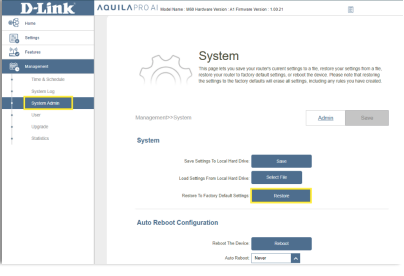
### Go to System Admin under Management, then Click System
If the domain address does not work, try accessing the router's admin page via the IP\
address. Typically, the default is 192.168.0.1, but this can change depending on your\
network configuration.
How to find the IP address of your D-Link router using Command Prompt in Windows\
OS:
* Press Win + R on your keyboard to open the Run dialog.
* Type CMD and press enter to open the command prompt.
* Run the command window, type **ipconfig** and press enter.
* Find the **Default Gateway** entry in the command output. This is the IP address of\
your Router.
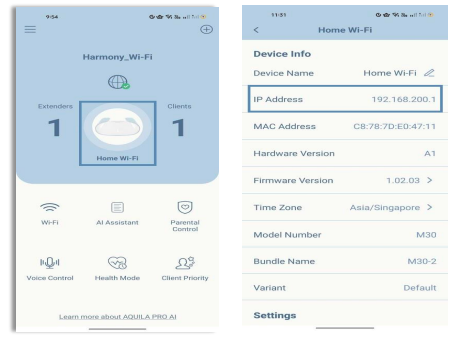
You can also find the IP address in the app (AQUILA PRO AI app)
* Open the AQUILA PRO AI app.
* Tap your device (M30)
* Look for **IP address**
{% endstep %}
{% endstepper %}