> For the complete documentation index, see [llms.txt](https://support.dlink.com.sg/llms.txt). Markdown versions of documentation pages are available by appending `.md` to page URLs; this page is available as [Markdown](https://support.dlink.com.sg/consumer/aquila-pro-ai-wi-fi-6-router/m30/faqs/how-do-i-factory-reset-the-m30-wi-fi-6-smart-mesh-router.md).
# How do I factory reset the M30 Wi-Fi 6 Smart Mesh Router
### **SOFT RESET**
#### AQUILA PRO AI App
{% stepper %}
{% step %}
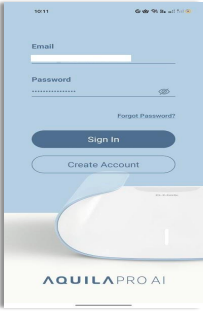
### Open the AQUILA PRO AI app on your device. Then Sign in.
{% endstep %}
{% step %}
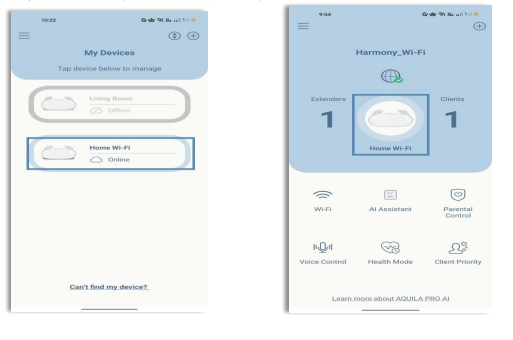
### Tap your device (M60 – Living Room)
{% endstep %}
{% step %}
### Look for Reset to Factory Default, then tap Reset.
The Router will restart, and your settings will be back to the factory default settings.
{% endstep %}
{% endstepper %}
### WebGUI
{% stepper %}
{% step %}
Connect your computer or device to one of the router’s LAN ports using another ethernet\
cable or via Wi-Fi (By default, Password located on the label sticker at the back of the\
router)
{% endstep %}
{% step %}
If this is your first time installing the router, open your web browser and enter\
into the browser (xxxx represents the last 4 digits of the\
MAC address). Enter the Admin Password and click login to start the configuration\
process.
The web address and default admin password are printed on the device label\ at the bottom of the device
NOTE: If you have changed the password and cannot remember it, you will need to reset the\ router to factory defaults.
{% endstep %}
{% step %}
### Go to System Admin under Management, then Click System
{% endstep %}
{% step %}
Click **Restore** to restore all configuration settings back to the settings that were in effect\
at the time the device was shipped out from the factory. All current settings will be lost,\
including rules that you have created.
{% endstep %}
{% endstepper %}
### HARD RESET
{% stepper %}
{% step %}
Ensure the router is powered on. Press and hold the reset button on the back side of the\
router for about 3-5 seconds.
{% endstep %}
{% step %}
The lights in front of the router should start to flash (The power LED may go breathing\
red) and then the device will reboot. Please allow for up to 1 minute for the reset process\
to complete.
Note: You need to reconfigure your router through GUI.
{% endstep %}
{% endstepper %}