> For the complete documentation index, see [llms.txt](https://support.dlink.com.sg/llms.txt). Markdown versions of documentation pages are available by appending `.md` to page URLs; this page is available as [Markdown](https://support.dlink.com.sg/consumer/5g-4g-mobile-wi-fi-router/dwr-x2000/faqs/how-to-factory-reset-dwr-x2000-5g-router.md).
# How to factory reset DWR-X2000 5G Router
Note: Performing a **hard reset** will restore the router to its factory default settings. This will\
erase any custom configurations, including Wi-Fi settings, passwords, and network\
configurations.
Hard Reset Procedure:
{% stepper %}
{% step %}
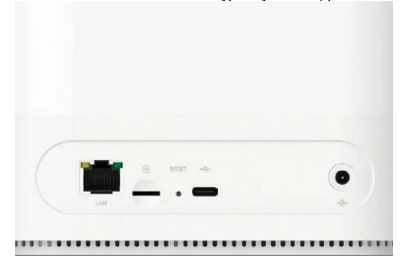
### Locate the Reset button under the router. It is typically a small, pinhole-sized button
{% endstep %}
{% step %}
Use an unfolded paperclip, SIM card ejector, or any similar small object to press and hold\
the **Reset** button for about **10-15 seconds**. You will see the **Power LED** starts blinking or\
you see the lights on the router flash
{% endstep %}
{% step %}
Release the reset button after holding it for the required time. The router will begin to\
restart. This process may take a few minutes. Once the reboot is complete, the router will\
return to its factory default settings.
{% endstep %}
{% endstepper %}
**Factory reset via Web GUI/App**
{% stepper %}
{% step %}
Connect your computer, smartphone, or tablet to the router either via Wi-Fi or by using an\
Ethernet cable.\
**Note:** The default Wi-Fi password is printed on the back of the router
{% endstep %}
{% step %}
Open your preferred web browser (Chrome, Firefox, etc.). In the address bar, type\
and press Enter. This will open the router's login page.
{% endstep %}
{% step %}
To access the router's settings, enter the username and password. If you’ve previously\
changed the password, use the updated one. Otherwise, use the default username\
**"admin"** and the default password located on the label at the back of the router.
{% endstep %}
{% step %}
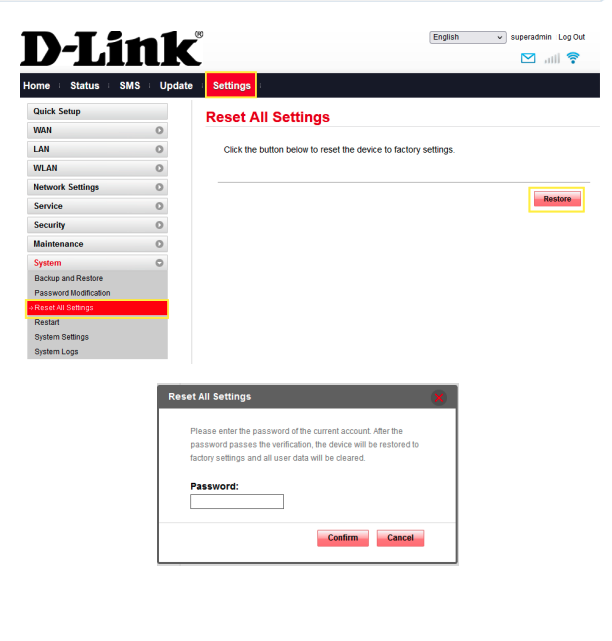
Once logged in, go to the **Settings** tab, then select **Reset All Settings** In the sub-menu,\
click **Restore**, enter your router’s password and then confirm to initiate the reset process.
{% endstep %}
{% endstepper %}