> For the complete documentation index, see [llms.txt](https://support.dlink.com.sg/llms.txt). Markdown versions of documentation pages are available by appending `.md` to page URLs; this page is available as [Markdown](https://support.dlink.com.sg/consumer/5g-4g-mobile-wi-fi-router/dwr-m930/faqs/accessing-the-admin-page-of-dwr-m930-4g-lte-router-and-changing-its-admin-password.md).
# Accessing the Admin Page of DWR-M930 4G LTE Router and Changing its Admin password
{% stepper %}
{% step %}
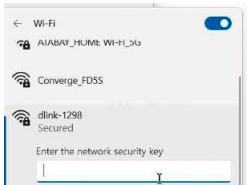
Connect your PC to the router via an Ethernet cable or connect wirelessly to the dlinkxxxx (xxxx is the last 4 digits of mac address) from the Wi-Fi list of the device you want\
to connect from. When prompted for a password, use the WPA key printed at the bottom\
of the router or by pushing the WPS button at the back of the Router.
{% endstep %}
{% step %}
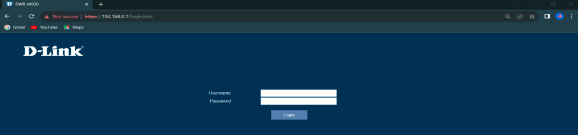
Open a web browser (such as Chrome, Firefox, or Safari) on your connected device and\
enter the router's IP address into the URL bar: then press enter.
{% endstep %}
{% step %}
The page will be prompted to enter a username and password. The default username\
and the default password are:
-Username: admin\
-Password: (as printed on the device label bottom of the router)
Note: If you have changed the password and cannot remember it, you will need to reset\ the router to factory defaults.
{% endstep %}
{% endstepper %}
**How to change the admin/device password of the DWR-M930 4G LTE Router?**
{% stepper %}
{% step %}
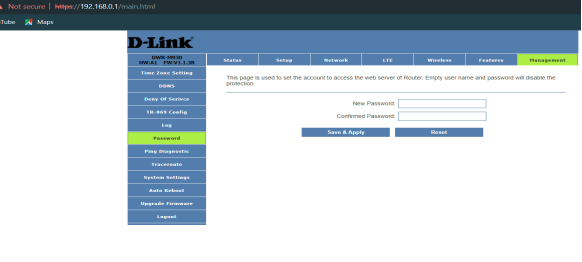
### Once logged in, Click on the ‘Management’ tab then ‘Password’
{% endstep %}
{% step %}
In the password field, enter a new admin/device password to access the configuration\
page of the router.
{% endstep %}
{% step %}
### Click Save & Apply
{% endstep %}
{% endstepper %}