> For the complete documentation index, see [llms.txt](https://support.dlink.com.sg/llms.txt). Markdown versions of documentation pages are available by appending `.md` to page URLs; this page is available as [Markdown](https://support.dlink.com.sg/consumer/5g-4g-mobile-hotspot-mifi/dwr-u2100/faqs/how-to-setup-dwr-u2100-5g-wi-fi-mobile-hotspot-with-nano-sim-card.md).
# How to setup DWR-U2100 5G Wi-Fi Mobile Hotspot with Nano SIM card
*Simply insert your active 5G or 4G SIM card into the device. It should automatically detect the network and start broadcasting a Wi-Fi signal. You can then connect your devices using the default Wi-Fi name (SSID) and password printed on the device.*
You can set up the DWR-U2100 using either the Web GUI or the D-Link Mobile Connect App.\
Choose the method that’s most convenient for you:
**Method 1: Using the D-Link Mobile Connect App**
{% stepper %}
{% step %}
Download and install the D-Link Mobile Connect app from your mobile device (App Store\
for iOS or Google Play Store for Android)
{% endstep %}
{% step %}
### Power on your DWR-U2100 and insert your active SIM card
**Note**: Make sure your SIM card is registered with your mobile provider and has an active data plan
{% endstep %}
{% step %}
### On your phone, connect to the router’s default Wi-Fi network.
-The default SSID will appear as **D-Link2G-XXXX** or **D-Link5G-XXXX**
-Wi-Fi password is printed on the label at the back of the device.
{% endstep %}
{% step %}
### Once connected, launch the D-Link Mobile Connect App.
{% endstep %}
{% step %}
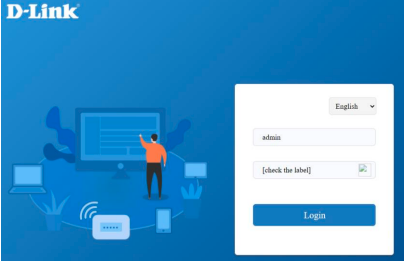
### You will be prompted to enter the username and password to access the router’s settings
**Username**: admin
**Password**: (found on the label at the back of the device)
*Note: Please check the box below indicating "I have read and agreed to the **User Agreement"** then tap **Login.***
{% endstep %}
{% step %}
You'll see a blue signal bar displayed on the screen, indicating that the router has\
successfully connected to the internet.
{% endstep %}
{% endstepper %}
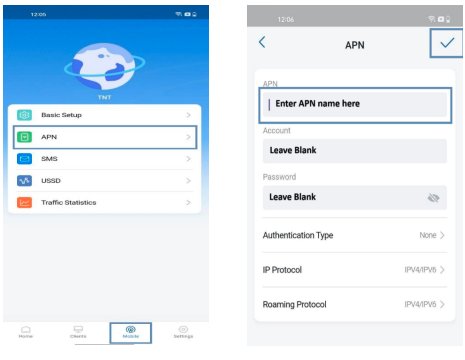
**What should I do if my router doesn’t automatically detect the SIM card connection?**
Ensure the SIM card is properly inserted into the router. If the connection isn't detected, you\
may need to set it up manually by entering the Access Point Name (APN) provided by your\
mobile carrier. You can find this information on your carrier’s website or support page.
{% stepper %}
{% step %}
### Navigate to Mobile and look for APN
{% endstep %}
{% step %}
Enter the APN details, then tap the Check Mark on the upper right corner to save the\
changes. Remember to have the correct APN information, usually provided by your SIM\
card provider
{% endstep %}
{% endstepper %}
**Method 2: Using the web interface (Web GUI)**
*You may access the router’s settings via a wired (Type-C) or wireless connection:*
**Option A: Wired Connection (Type-C to Laptop)**
{% stepper %}
{% step %}
### Connect the DWR-U2100 to your desktop or laptop computer using a USB Type-C cable.
{% endstep %}
{% step %}
### On your computer, open a web browser and go to
{% endstep %}
{% endstepper %}
**Option B: Wireless Connection**
{% stepper %}
{% step %}
### On your device (computer, smartphone, tablet, etc.), go to Wi-Fi settings
{% endstep %}
{% step %}
### Connect to the router’s default Wi-Fi network:
-The SSID will appear as D-Link2G-XXXX or D-Link5G-XXXX
-The default Wi-Fi password is printed on the label at the back of the device
{% endstep %}
{% step %}
### Open a web browser and go to
{% endstep %}
{% step %}
### Log in with:
**Username**: admin
**Password**: (printed on the device label)
After logging in, you will ll be directed to the admin page where you can configure settings such as Wi-Fi and APN settings.
{% endstep %}
{% endstepper %}
**To manually configure APN settings**
{% stepper %}
{% step %}
### Click on Mobile tab then, click APN on the menu on the left pane.
{% endstep %}
{% step %}
To manually input the APN, type it into the APN field provided by your telco provider and\
click **Save & Apply**
{% endstep %}
{% endstepper %}
---
# Agent Instructions
This documentation is published with GitBook. GitBook is the documentation platform designed so that both humans and AI agents can read, navigate, and reason over technical content effectively. Learn more at gitbook.com.
## Querying This Documentation
If you need additional information that is not directly available in this page, you can query the documentation by asking a question.
Perform an HTTP GET request on the following URL with the `ask` and `goal` query parameters:
```
GET https://support.dlink.com.sg/consumer/5g-4g-mobile-hotspot-mifi/dwr-u2100/faqs/how-to-setup-dwr-u2100-5g-wi-fi-mobile-hotspot-with-nano-sim-card.md?ask=&goal=
```
`ask` is the immediate question: it should be specific, self-contained, and written in natural language.
`goal` is what the user is ultimately trying to achieve, the reason they need the answer. Sharing it helps GitBook give you a better, more relevant answer. A goal is most helpful when it describes the outcome the user wants rather than restating the question. For example, with `ask=how do I create an API token`, a goal like `automate deployments from our CI pipeline` lets GitBook tailor the answer to that use case.
The response will contain a direct answer to the question and relevant excerpts and sources from the documentation.
Use this mechanism when the answer is not explicitly present in the current page, you need clarification or additional context, or you want to retrieve related documentation sections.