> For the complete documentation index, see [llms.txt](https://support.dlink.com.sg/llms.txt). Markdown versions of documentation pages are available by appending `.md` to page URLs; this page is available as [Markdown](https://support.dlink.com.sg/consumer/5g-4g-mobile-hotspot-mifi/dwr-933m/faqs/how-do-i-set-up-dwr-933m-router-with-nano-sim-card.md).
# How do I set up DWR-933M Router with Nano SIM card?
The DWR-933M is a simple portable mobile router that lets you connect to the internet using your\
SIM card. It's a plug-and-play device, which means you just insert your SIM card, and it should\
automatically connect to the network for internet access.
{% stepper %}
{% step %}
Ensure your SIM card has been registered and has active data plan. To insert your SIM\
card, follow these steps:
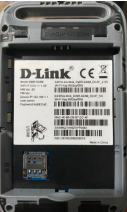
a. From the back of the device, and with the notch positioned at the bottom-left corner,\
lift the back plate upward to detach it from the device.
b. To insert your SIM card, follow the slot's diagram. Push the SIM card holder to\
unlock it, insert the nano SIM card carefully, ensure the gold contacts are facing down, and then pull it to lock it.
{% endstep %}
{% step %}
To put the battery, align the gold contacts at the top center of the battery with the gold\
contacts on the device. Then, carefully slide down the battery until it locks securely into\
place.
Note: The SSID (network name) and password are printed on the back of device (please take a photo for your reference incase you need to connect to the Wi-Fi)
{% endstep %}
{% step %}
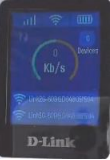
Power on the device, the home screen will appear. After a few seconds of inactivity, the\
screen will power off. To wake up the display, press the **Power Button** or **WPS Button.**
{% endstep %}
{% step %}
Connect your device (computer, smartphone, etc.) to the router's Wi-Fi by locating the\
default Network Name (SSID) printed on the router's label. Select this network from your\
device’s available Wi-Fi options and enter the default password, also found on the label.
The router should automatically connect to your mobile network. Once connected, you’ll have internet access.
{% endstep %}
{% endstepper %}
**Manual APN configuration (If auto-detection failed)**
When you insert the SIM card, the router typically detects the connection automatically. If it\
doesn't, you can manually set up the connection by entering the Access Point Name (APN)\
provided by your SIM card’s carrier or can be found on the carrier’s website or support page.
{% stepper %}
{% step %}
On a device connected to the router, open any browser (e.g., Chrome, Firefox). **Enter the**\
**router’s IP address:** Type **192.168.1.1** in the browser’s address bar and press **Enter**
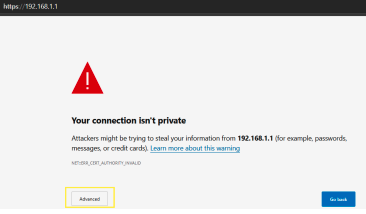
Note: You might see a "Privacy Error" or similar security warning for the first time. This\ happens because the router uses a self-signed SSL certificate, which browsers may not\ recognize as secure.
Here's how to proceed:
-Click on **Advanced** at the bottom of the warning page
-Then, select **Continue to 192.168.1.1 (unsafe)** to access the router's login page.
If you’re hesitant to proceed due to security concerns, you can review the certificate\
details to verify its issuer and confirm that it is associated with D-Link by doing the\
procedure below:
* Click the "**Not Secure**" icon or the padlock symbol (depending on your\
browser).
* View the certificate details to confirm it was issued by the D-Link\
manufacturer
{% endstep %}
{% step %}
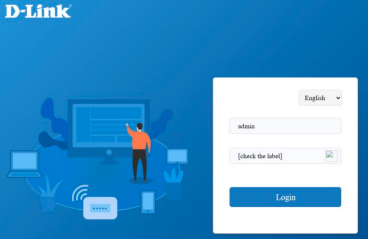
You will be prompted to enter the username and password to access the router’s\
settings.\
Username: admin\
Password: \[device password found on the label]
{% endstep %}
{% step %}
After logging in, you’ll be directed to the admin page where you can configure other\
settings like Wi-Fi and APN.
{% endstep %}
{% step %}
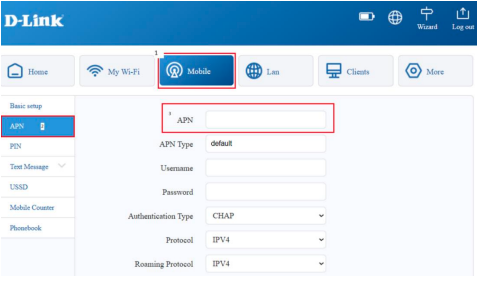
### Skip the set-up wizard and click on Mobile tab. Click APN on the left-hand side
{% endstep %}
{% step %}
To manually input the APN, type it into the APN field provided by your telco provider and\
click **Save & Apply.**
{% endstep %}
{% endstepper %}
**D-Link Mobile Connect App**
{% stepper %}
{% step %}
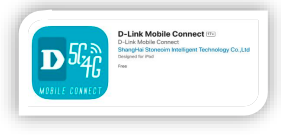
Download and install the “D-Link Mobile Connect app” from your mobile device’s Play\
Store / Apple store.
{% endstep %}
{% step %}
Ensure the DWR-933M is powered on. On your mobile device, go to Wi-Fi Settings and\
connect to the default Wi-Fi network name (SSID) D-LINK2G-XXXX, by default the\
password printed under the battery on the back of the device.
{% endstep %}
{% step %}
Once connected to the DWR-933M wirelessly. Launch the **D-Link Mobile Connect App.**
{% endstep %}
{% step %}
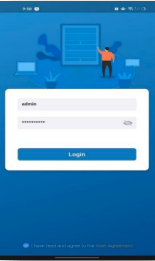
You will be prompted to enter the username and password to access the router’s settings.\
The default username is **admin** and the password (refer on the device label)
Note: Please check the box below indicating "I have read and agree to the User Agreement." And Press Login.
{% endstep %}
{% step %}
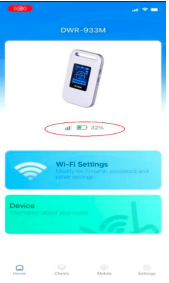
You'll notice a blue signal bar displayed on the screen, indicating that the router has\
successfully connected to the internet.
Note: If the connection isn't detected, you can manually set up the connection by entering\ the Access Point Name (APN) specific to your SIM card's carrier.
{% endstep %}
{% step %}
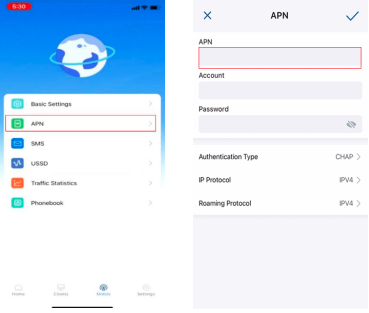
### Navigate to Mobile and Look for APN.
{% endstep %}
{% step %}
Enter the APN details, then proceed to save the changes. Remember to have the correct\
APN information, usually provided by your SIM card provider.
{% endstep %}
{% endstepper %}
---
# Agent Instructions
This documentation is published with GitBook. GitBook is the documentation platform designed so that both humans and AI agents can read, navigate, and reason over technical content effectively. Learn more at gitbook.com.
## Querying This Documentation
If you need additional information that is not directly available in this page, you can query the documentation by asking a question.
Perform an HTTP GET request on the following URL with the `ask` and `goal` query parameters:
```
GET https://support.dlink.com.sg/consumer/5g-4g-mobile-hotspot-mifi/dwr-933m/faqs/how-do-i-set-up-dwr-933m-router-with-nano-sim-card.md?ask=&goal=
```
`ask` is the immediate question: it should be specific, self-contained, and written in natural language.
`goal` is what the user is ultimately trying to achieve, the reason they need the answer. Sharing it helps GitBook give you a better, more relevant answer. A goal is most helpful when it describes the outcome the user wants rather than restating the question. For example, with `ask=how do I create an API token`, a goal like `automate deployments from our CI pipeline` lets GitBook tailor the answer to that use case.
The response will contain a direct answer to the question and relevant excerpts and sources from the documentation.
Use this mechanism when the answer is not explicitly present in the current page, you need clarification or additional context, or you want to retrieve related documentation sections.